Turn your Echo into a podcast player in minutes
If you can say “Alexa, set a timer,” you can use your Echo as a solid podcast player. The fastest start is simply: “Alexa, play [podcast name].” If Alexa asks where to play it, pick a service once and you’ll be listening in under a minute. From there, the basics are the same as music: “pause,” “resume,” “skip,” and “stop.” The one thing that trips people up is that podcasts can come from multiple apps, so Alexa may grab the “right” show from the “wrong” provider, or start an unexpected episode. A quick setup check fixes most of that.
First, check your setup: Alexa app, accounts, and devices
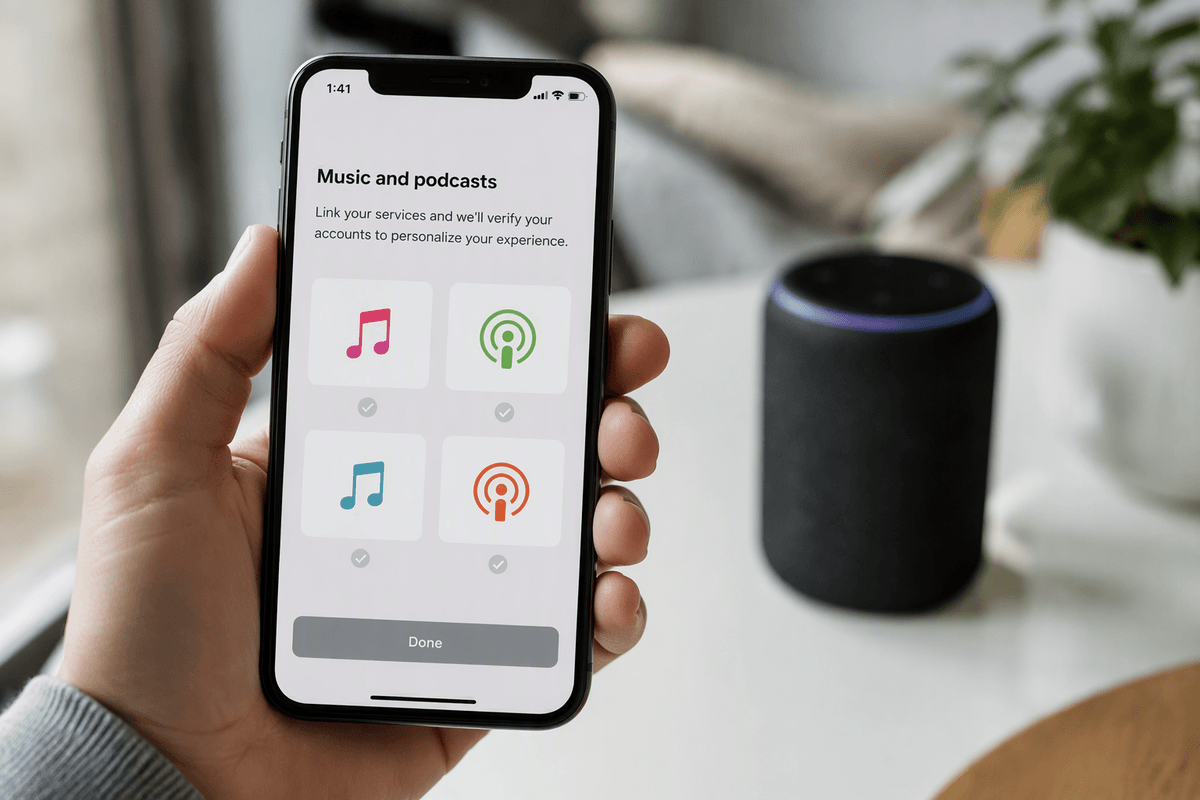
Most podcast hiccups come from one of three places: the Alexa app isn’t signed into the account your Echo uses, the podcast service isn’t linked, or you’re talking to the “wrong” Echo. Open the Alexa app and confirm you’re on the right Amazon account (the one that set up the speaker). Then go to Settings > Your Profile > Music & Podcast Settings (wording varies slightly) and check which podcast providers are available and linked—Spotify, Apple Podcasts, or others you’ve enabled. If you use Spotify, make sure you can actually play something in the Spotify app on your phone first; expired logins are common.
Finally, verify the device. In the Alexa app, tap Devices and select the Echo you’ll use for podcasts, then make sure it’s online and named something you’ll actually say out loud (“Kitchen,” not “Echo-9X”). Renaming takes a minute, but it prevents Alexa from starting a show in the bedroom when you’re standing in the living room.
Pick your default podcast source (and why it matters)
You’ll get the most reliable results when you choose one “home base” for podcasts. Otherwise, Alexa may bounce between providers that each have slightly different catalogs, episode numbering, and resume behavior—so “play the latest episode” can land on a different file than you expect, or “resume” might restart from the beginning. In the Alexa app, go to Settings > Music & Podcasts (or Music & Podcast Settings), find Podcasts, then set your Default Service. Pick the app you actually use on your phone, since that’s usually where you follow shows and manage subscriptions.
Spotify is a common default because it tends to resume well across devices, but it requires a clean account link (and some features may depend on your plan). Apple Podcasts can be great if you’re all-in on iPhone, but make sure it’s linked and working before you rely on it. Whatever you choose, stick with it for a week—switching defaults midstream is when “wrong episode” problems show up.
The essential voice commands for finding and starting shows
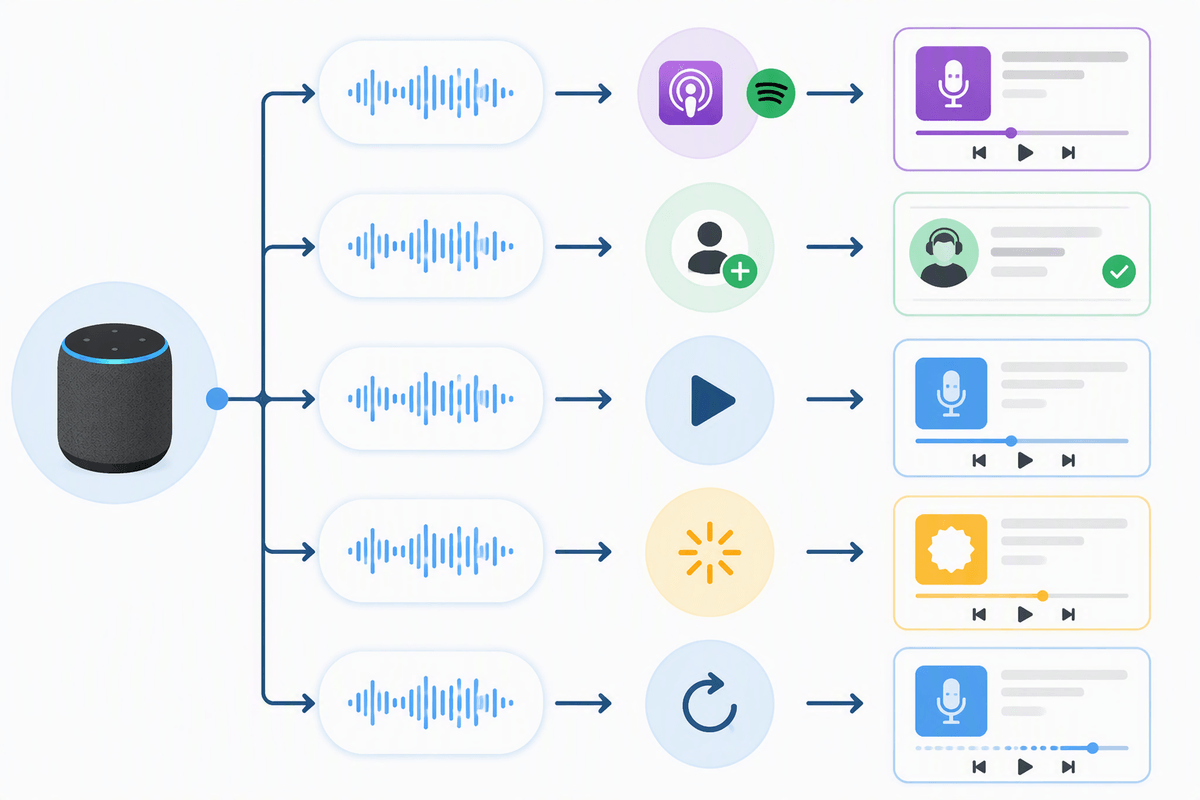
You’ll get the cleanest starts when you’re specific about the show and the provider. Try: “Alexa, play [podcast name] on [Spotify/Apple Podcasts].” If the title is common, add the host or network: “Alexa, play The Daily from The New York Times.” When Alexa still grabs the wrong one, use a small correction that doesn’t feel intuitive: “Alexa, play the podcast [podcast name].” That extra word helps Alexa treat it as a show, not a random audio search.
To control which episode you start with, use: “Alexa, play the latest episode of [podcast name],” or “Alexa, play the newest episode…” To pick up where you left off, “Alexa, resume [podcast name]” usually works better than a plain “resume” if multiple people use the same Echo. One practical limitation: some shows label episodes oddly, so “episode 12” can fail—asking for “the latest” is often more reliable.
Control playback like a pro: resume, skip, speed, sleep
You’ll notice two common moments: you walk away mid-episode, or you come back and Alexa starts the wrong thing. For getting back on track, use the show name: “Alexa, resume [podcast name],” or “Alexa, continue [podcast name].” If it restarts anyway, try a time jump: “Alexa, fast-forward 2 minutes,” or “Alexa, rewind 30 seconds.” Skipping is simple—“Alexa, skip ahead,” “skip back,” or “next”—but a practical limitation is that some providers treat podcasts like music, so “next” may jump to a different show or playlist if one is running.
For pacing, ask directly: “Alexa, set playback speed to 1.2x,” or “play at 0.9x.” Not every provider supports every speed, so if Alexa says it can’t, you may need to change the speed inside the podcast app. When you’re listening at night, use: “Alexa, set a sleep timer for 20 minutes,” then “stop” when you’re done. The sleep timer is usually more reliable than asking Alexa to stop “after this episode,” which often depends on the app’s episode boundaries.
Listen across rooms and devices without losing your place
You start an episode in the kitchen, then drift to the living room and want it to keep going. The simplest handoff is within an Echo group: set up a speaker group (like “Downstairs”) in the Alexa app, then say, “Alexa, play [podcast name] on Downstairs.” If you want to move what’s already playing, try: “Alexa, move my music to the living room.” It often works for podcasts too, but not every provider supports a perfect mid-episode transfer, so be ready to do a quick “resume [podcast name]” on the new speaker.
For phone-to-Echo switching, your default provider matters. If you listen on your phone and then say, “Alexa, resume,” you’re relying on the provider to sync your position. Spotify is usually strong here, while other apps may lag or restart. A practical habit: pause before you switch devices, wait a beat, then resume on the other device to give it time to sync.
When Alexa won’t cooperate: common podcast problems and fixes
You say “play my podcast,” and Alexa starts something close-but-wrong, or an old episode. The fastest fix is to be explicit: “Alexa, play the podcast [show name] on [your provider].” If it still picks the wrong one, try adding the publisher (“from NPR,” “from Wondery”) or follow the show in your podcast app so it’s easier for Alexa to match. When the “latest episode” isn’t actually the newest, ask for “newest” instead, or start it from your phone once and then use “resume [show name]” on the Echo.
When resume keeps restarting, it’s usually a sync issue or the wrong device answering. Pause on the current device, wait 5–10 seconds, then say “Alexa, resume [show name]” to the specific Echo name (“…on Kitchen”). If Alexa says it can’t play that right now, open the Alexa app and re-link the podcast service (logins expire), then unplug the Echo for 20 seconds. The annoying limitation: some providers just don’t keep position perfectly across devices, so a quick “fast-forward 1 minute” is sometimes the practical workaround.
A simple routine for effortless daily podcast listening
Most people get reliable daily listening by turning it into a repeatable script. In the morning (or when you start cooking), say: “Alexa, resume [podcast name] on [your provider],” and keep using that same phrasing so Alexa doesn’t guess. If you follow a few shows, pick one “default” for weekdays and one for weekends, and ask for “the newest episode” when you care about freshness. At night, use: “Alexa, set a sleep timer for 15 minutes.” The small cost is discipline: mixing providers or switching devices mid-episode without pausing is what usually breaks your place.