A fresh start: why devices feel messy by February
By February, most phones and PCs feel “mysteriously” fuller and slower, even if you haven’t done anything unusual. Holiday photos and videos pile up, group chats keep saving media, and apps quietly cache data to load faster. Work and school add downloads, duplicates, and “temporary” files that never get cleaned up. Meanwhile, you install a few helpful tools, try a couple free trials, and forget to remove them—along with browser extensions you barely notice. Storage warnings and messy home screens show up before you have time to sort what’s safe to delete.
Way 1: Do a quick audit before you delete anything
The quickest way to avoid “oops” deletions is a two-minute audit. On your phone, open Storage and note what’s biggest: Photos/Videos, Apps, Messages, Downloads. On a PC or Mac, sort files by Size in Downloads and Desktop, and check what’s eating space in System Settings/Storage. Then make a short “keep list” before you touch anything: photos you haven’t backed up, files tied to taxes, school, or work, and anything you’d hate to lose (password exports, scans, project folders). This small pause costs a few minutes, but it saves hours of recovery later.
Ways 2–3: Remove apps, programs, and extensions you don’t use
You probably have “just in case” apps that made sense once—travel tools, fitness trials, coupon apps, kids’ games—and now they’re mostly sitting there updating in the background. Start with the low-risk wins: uninstall anything you haven’t opened in the last month or two, and anything you can’t quickly explain. On phones, check each app’s storage and permissions before you delete; if it’s a bank, school, work, or medical app, keep it and move on. On PCs and Macs, remove programs you don’t recognize only after a quick search of the name, and be cautious with drivers and security tools.
Browser extensions are the sneaky version of the same problem. Disable first (don’t delete) and browse normally for a day. If nothing breaks, remove it. Fewer extensions usually means fewer pop-ups, fewer slow tabs, and less tracking—but plan for a small time cost if you need to re-sign in or redo settings.
Ways 4–6: Clear storage hogs without losing what matters

The biggest space hog is usually photos and video, and the safest move is to back them up before you “clean.” Turn on iCloud Photos or Google Photos (or copy your library to an external drive on a computer), confirm you can see the newest items from another device, then use the built-in “Optimize Storage” option so originals live in the cloud while your phone keeps smaller versions. This can free up gigabytes without forcing you to decide what to delete today.
After that, clear the piles that don’t matter: empty your Downloads folder, remove duplicate installers (especially on PCs), and delete old .zip files you already unpacked. Then tackle cache-heavy apps without losing accounts: in phone storage settings, review each big app’s “Documents & Data,” clear cache where it’s offered, and in Messages set media to auto-delete after 30 days if you don’t need chat history. The trade-off is simple: you may re-download media or see slower first loads, but you get space back fast.
Ways 7–8: Organize what stays so you can find it
Once the obvious clutter is gone, the win comes from making what’s left easier to find. Start with one “landing zone” you can trust: a single folder called Inbox (or To Sort) in Files/Explorer/Finder, and a rule that anything you download goes there first. Then create 5–7 simple folders you’ll actually use (Work/School, Family, Finances, Health, Home, Projects, Receipts) and move only today’s active stuff out of Desktop and Downloads. Don’t over-build a perfect system; too many folders becomes its own mess.
On your phone, organize by behavior, not category. Put your 8–12 daily apps on the first screen, group the rest into a few folders (Money, Travel, Kids, Shopping), and delete extra widgets you never read. Expect a small time cost the first week as muscle memory catches up, but it pays back every day.
Ways 9: Reduce digital noise from notifications and inbox clutter
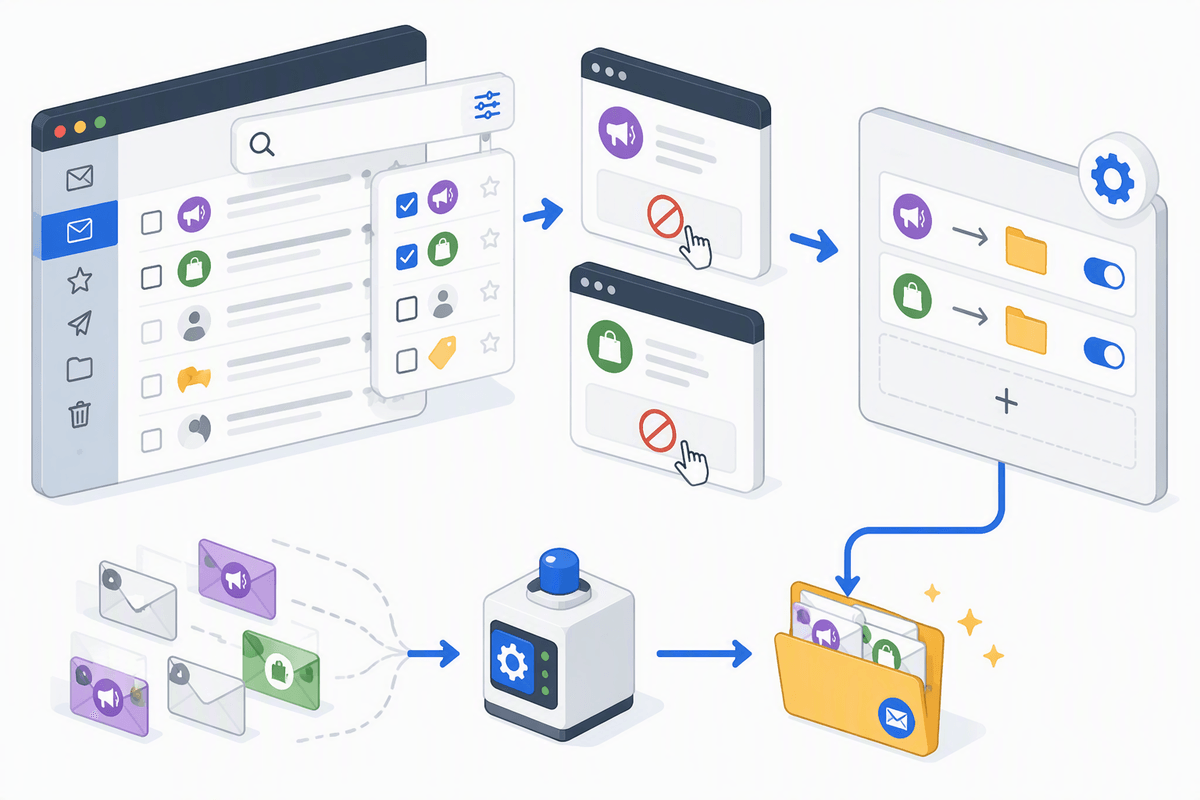
You can have plenty of free storage and still feel “cluttered” if your phone and email are constantly interrupting you. Start on your phone: open Notifications, sort by “most frequent,” and turn off anything that isn’t time-sensitive (shopping promos, social “someone posted,” game alerts). Keep a short list that earns the right to buzz: calls, texts from key people, calendar reminders, banking/security alerts, and maybe delivery updates. On a computer, do the same with browser notifications—most sites don’t need permission.
For inbox clutter, make it mechanical: search “unsubscribe” and “no-reply,” unsubscribe from five senders, then create one rule that sends newsletters and receipts to a folder. The cost is 10–15 minutes of setup, but the daily mental load drops fast.
Ways 10: Lock it down and stop future mess with updates and backups
Most people only think about updates and backups when something goes wrong, which is why clutter and slowdowns keep coming back. Turn on automatic updates for your phone, browser, and core apps, then remove “optional” updaters that constantly nag (toolbars, coupon helpers, old printer pop-ups). Updates aren’t just security; they often fix storage bugs, battery drain, and crashes that look like a messy device.
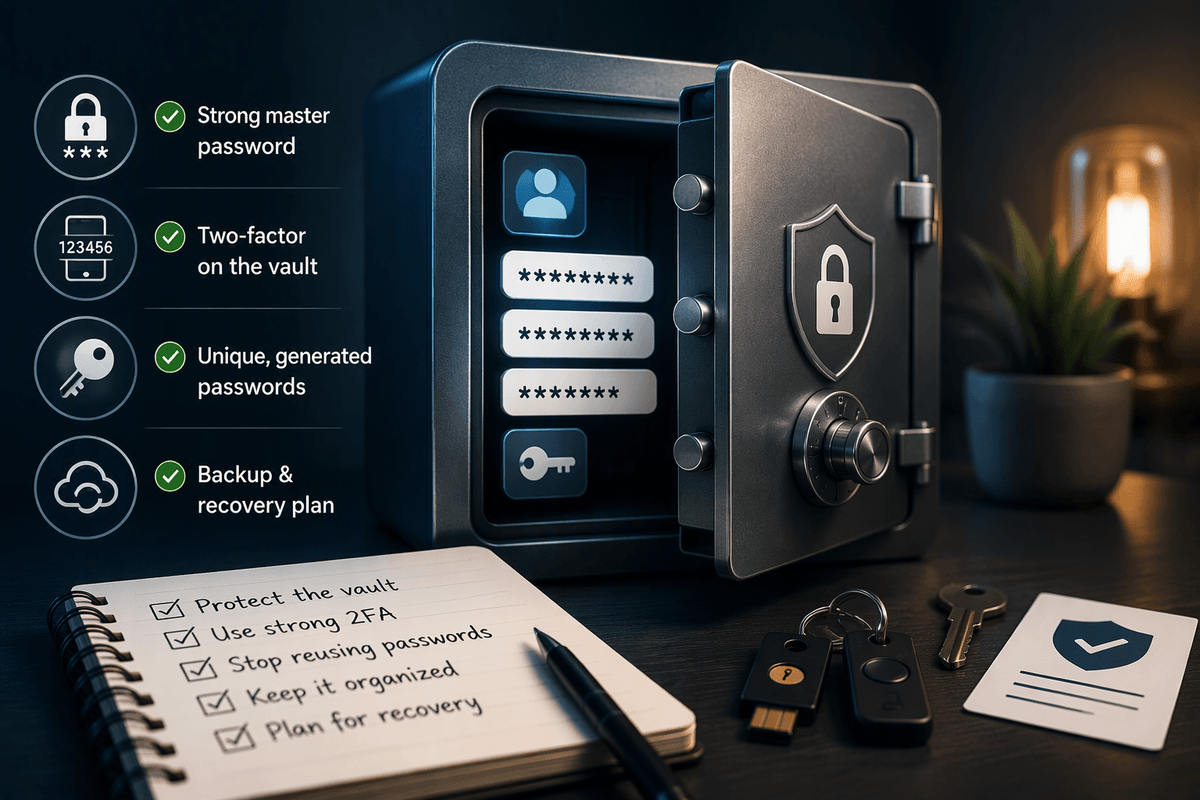
Backups are the real safety net that lets you clean without fear. On iPhone, confirm iCloud Backup is on; on Android, confirm Google One/Device backup. On PCs and Macs, pick one: an external drive (Time Machine or File History) or a reputable cloud backup, then set it to run automatically. The limitation is cost: cloud storage and a reliable external drive aren’t free, and the first backup can take hours, so start it overnight and verify you can restore a file.
A 20-minute monthly reset that keeps everything tidy
Pick one day a month and run a 20-minute reset with a timer. Minutes 1–5: check Storage and note the top two categories growing fastest. Minutes 6–10: empty Downloads, clear browser cache, and delete the biggest “obviously safe” files (old installers, screenshots, duplicates). Minutes 11–15: scan apps by “last used” and remove one you don’t need; disable one extension you forgot about. Minutes 16–20: confirm backups ran and install pending updates. The constraint: the first month may take longer while you learn where your mess actually comes from.