Your password manager isn’t the finish line
Installing a password manager is like buying a good lock: it helps, but only if you use it correctly and don’t leave a window open. Plenty of people keep the manager, then keep old habits—reusing a few “favorite” passwords, letting the browser save logins anyway, or skipping the built‑in password generator because it feels slower. The result is a vault full of entries that look organized but aren’t much harder to break than before.
The big wins come from a short set of habits: a strong master password, two‑factor protection on the vault, unique generated passwords for important accounts, and a plan for recovery when you change phones or lose access. None of this is complicated, but it does take an hour of setup and a little ongoing cleanup.
If your master password is weak, everything is weak

Most people set up a password manager with good intentions, then choose a master password the way they’d choose a Wi‑Fi password: something memorable, maybe with a number, maybe reused from an older account. That single choice quietly sets the ceiling for everything else. The vault can hold 80-character random passwords for every site, but if the master password is guessable, reused, or shows up in an old breach, an attacker doesn’t need to beat each login—they only need to get into the vault once.
A good master password is long and unique, not clever. A short phrase you can type accurately beats a “complicated” shorter password you’ll mistype and reset. Aim for something like 4–6 unrelated words, with spacing or punctuation if your manager allows it, and never reuse it anywhere else. The practical constraint is that changing a master password can force re-encryption and re-login work across devices, so it’s worth getting right once, writing down the vault emergency info, and then leaving it alone unless you have a real reason to rotate it.
Two-factor on the vault: what to use and avoid
The most common gap I see is people protecting every individual account with two-factor, but leaving the vault itself as “just a password.” Turn on two-factor for the password manager account and treat it like the front door key. For most people, the best option is an authenticator app (time-based codes) or, even better, a security key you can tap or plug in. Those methods are hard to phish and don’t depend on your phone number.
Try to avoid SMS text messages for the vault unless it’s the only thing available. Texts can be intercepted through SIM-swap attacks and they’re easy to trick people into reading back. Also be careful with email-based codes, since your email inbox is often the single most targeted account you own. The practical trade-off is that stronger two-factor adds setup friction: you may need a second device, a backup security key, or printed recovery codes stored somewhere safe. Do that work once, and logins become boring again—in a good way.
Stop saving everything: what belongs outside the vault
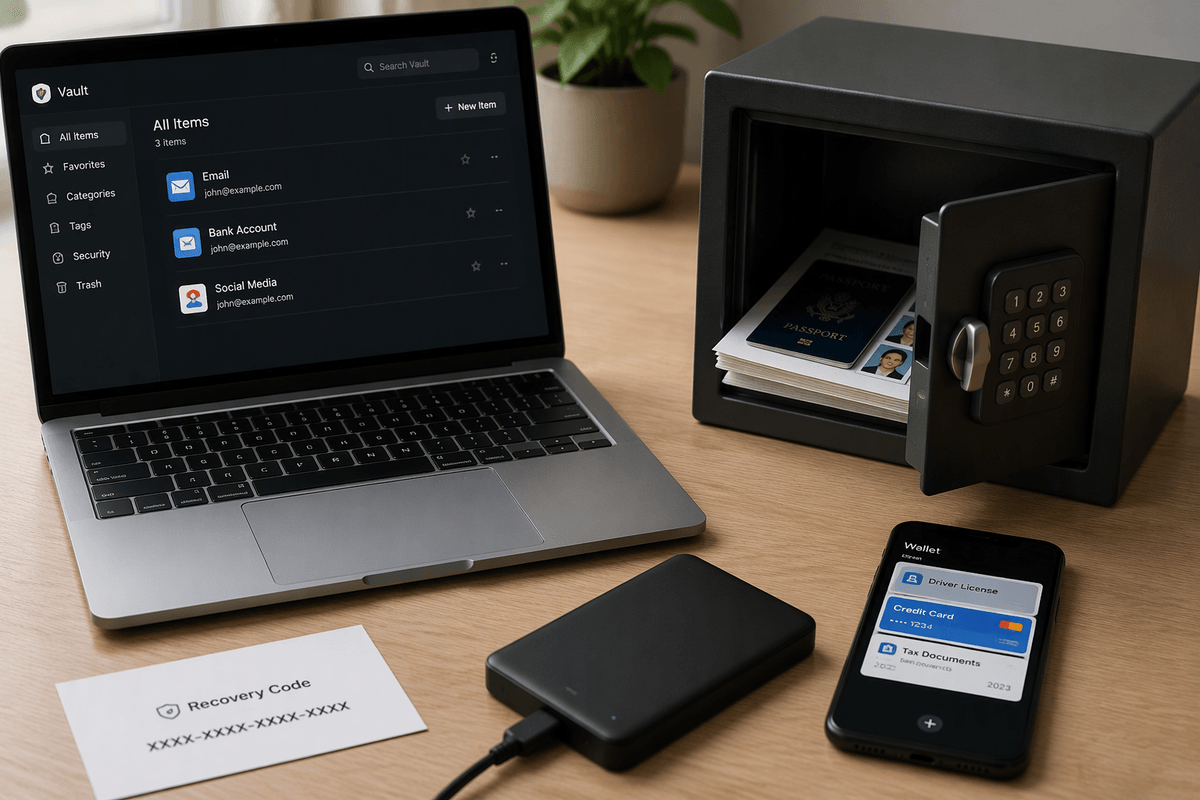
It’s tempting to treat the vault like a junk drawer for anything secret: scans of passports, tax PDFs, photos of your driver’s license, full credit card numbers, even copies of recovery codes. That can backfire. A password manager is designed for logins, not as a general “secure folder,” and a vault breach (or even a mistaken share to a family/teams space) is more damaging when you’ve piled high-value documents into the same container.
Keep the vault focused on credentials: usernames, generated passwords, and the account’s recovery hints (like which email/phone is on file). Store recovery codes separately—printed and locked up, or in a dedicated secure notes app that isn’t tied to the same master password. For sensitive documents, use encrypted storage meant for files (device storage with encryption, or a reputable encrypted drive), and keep credit card and ID details in your phone’s wallet or a payments manager. The trade-off is inconvenience: splitting storage means you need a simple labeling system and a quick “where did I put that?” habit.
Clean up password reuse and weak entries without burnout
The messy truth is most vaults start as a “migration,” which means you imported years of reused passwords and never came back to fix them. Don’t try to repair 200 logins in one night. Start with the accounts that can actually hurt you: email, banking, payroll, Apple/Google/Microsoft, and anything that stores saved payment methods. Change those to unique generated passwords first, then turn on two-factor at the account level where it’s offered.
After that, use your manager’s password health/reuse report as a queue, not a grade. Pick a small target—five fixes a week—and do them when you’re already logging in for a real reason. Expect a little friction: some sites have bad password rules, some will log you out everywhere, and a few will break old apps until you update them. The goal is steady progress, not a perfect vault by Friday.
Sharing, family vaults, and teams: convenience with guardrails
Sharing is where password managers quietly create new risk. It feels efficient to toss everything into a “family” or “team” vault, but shared spaces tend to grow, permissions drift, and nobody remembers what got added during a rushed moment. Treat shared vaults like a work kitchen: only keep what multiple people truly need, and keep it tidy.
Create separate vaults (or collections) for “shared” versus “personal,” and keep the shared one as small as possible: streaming services, home utilities, Wi‑Fi, a couple of joint financial logins if you must. For teams, share per project or department, not “everyone gets everything,” and use least-privilege access (view vs edit) so one mistake doesn’t overwrite credentials. Practical constraint: this takes admin effort—someone has to review access when people change roles, leave a job, or when a teen in the house doesn’t need the banking login anymore.
When you can, share with built-in sharing instead of texting passwords, and avoid putting recovery codes or your email master login into a shared space at all.
Your recovery plan matters more than your features list
You don’t really know if your setup is “secure” until you lose a phone, get locked out of email, or a device dies right before a trip. A recovery plan is what keeps a bad day from turning into a week of resets and support tickets. Confirm you can sign into the vault on a second device, store recovery codes somewhere that doesn’t depend on the vault, and keep your email account protected with its own strong password and two-factor.
Also plan for the human side: who can help you recover if you’re unavailable, and what they should never have (like your master password). The cost is a little boring paperwork—printing codes, labeling a safe place, testing a restore once—but it’s the part that actually saves you.