When Safe Mode is the right move (and when it isn’t)
Safe Mode is a good move when Windows is unstable in normal use—random crashes, repeated freezing, black screens after sign-in, or a new problem that started right after a driver, app, or update. It loads a minimal set of drivers and startup items, which makes it a controlled test: if the issue improves there, you’re likely dealing with a software conflict rather than failing hardware.
It’s not ideal for problems that clearly point to hardware (loud clicking drive, overheating shutdowns, visible display artifacts) or for performance tuning, since Safe Mode intentionally disables many features. Networking Safe Mode can help when you need downloads, but it also adds variables and can be slower.
What Safe Mode actually changes in Windows 10/11
You’ll notice Safe Mode feels “barebones” because Windows intentionally starts with only the core pieces needed to log in and run basic tools. It uses a minimal set of Microsoft-supplied drivers (basic display, keyboard/mouse, storage), skips most third-party drivers, and doesn’t load the usual startup apps, background services, and scheduled tasks that can cause conflicts. That’s why audio, high screen resolution, Bluetooth, printers, and some security tools may not work normally.
There are also three flavors that change what you can test: standard Safe Mode (best for isolating drivers and startup software), Safe Mode with Networking (adds network drivers and services so you can update, download tools, or run cloud-based scans), and Safe Mode with Command Prompt (useful when Explorer or the desktop won’t cooperate). The trade-off is that Safe Mode can’t fully represent “normal” performance, and some fixes may require an admin password and time for restarts.
Getting into Safe Mode from a working desktop

When you can still reach the desktop, the cleanest way into Safe Mode is through Advanced startup rather than forcing hard shutdowns. Save your work first—this process restarts the PC. Open Settings, go to System > Recovery (Windows 11) or Update & Security > Recovery (Windows 10), then under Advanced startup choose Restart now. On the blue menu, select Troubleshoot > Advanced options > Startup Settings > Restart.
After the restart you’ll see a numbered list. Press 4 for standard Safe Mode, 5 for Safe Mode with Networking, or 6 for Safe Mode with Command Prompt. If you only need to uninstall a driver, remove a recent app, or run System Restore, start with option 4 to keep variables low. Choose Networking only when you truly need internet access, because Wi‑Fi may not connect automatically and some security tools won’t load, which can slow you down or block downloads.
Getting into Safe Mode when Windows won’t start normally
When Windows won’t reach the sign-in screen reliably, the goal is to trigger Windows Recovery Environment (WinRE) so you can use the same Startup Settings menu without guessing at key presses. If the PC shows the manufacturer logo and then fails or loops, hold the power button to turn it off. Repeat that “start, interrupt, power off” cycle about three times; on the next boot you should see “Preparing Automatic Repair” or “Advanced options,” which drops you into WinRE.
From there, choose Troubleshoot > Advanced options > Startup Settings > Restart, then press 4 (Safe Mode), 5 (Safe Mode with Networking), or 6 (Safe Mode with Command Prompt). If Startup Settings isn’t offered, look for “See more recovery options,” or use Troubleshoot > Advanced options > System Restore or Uninstall Updates first, since those can fix a bad update without needing Safe Mode at all.
If WinRE never appears, you’ll need a Windows 10/11 installation USB to boot into Repair your computer. That requires another working PC to create the USB and can take 20–40 minutes, plus you may need to change the boot order in BIOS/UEFI.
A focused checklist: what to test once you’re in Safe Mode
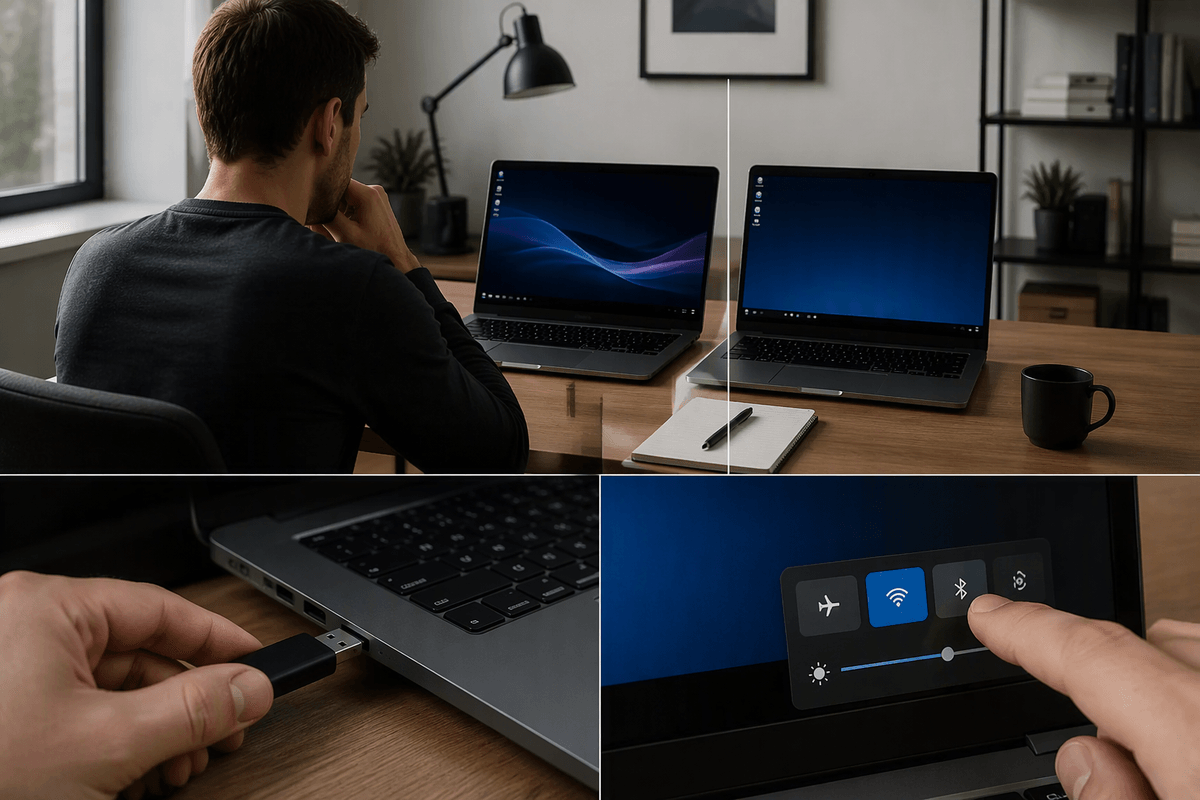
Once you’re signed in, treat Safe Mode like a controlled experiment: do only a few checks, and write down what changes. First, confirm whether the core symptom still happens—does it still freeze after a few minutes, crash on sign-in, or spike CPU/disk while “idle”? If the problem disappears, try to reproduce it using the same trigger you used in normal mode (opening a specific app, plugging in a USB device, joining Wi‑Fi), but keep the number of actions small so you don’t introduce new variables.
Then work through a short, high-value checklist: open Task Manager and note any process pegging CPU, memory, or disk; check Device Manager for obvious driver issues (warning icons), and if the problem started after a driver update, roll that driver back or uninstall it. If it began after a Windows update, use WinRE’s Uninstall Updates (quality update first) or run System Restore. Run a malware scan if you can (Networking Safe Mode may be required), but expect limited protection tools in Safe Mode and slower downloads. Finally, review startup items (Task Manager > Startup) and recently installed apps; remove one suspect at a time because each reboot costs time.
Interpreting results: what “works in Safe Mode” usually means
If the PC feels stable in Safe Mode but crashes, freezes, or crawls in normal mode, that usually points to something Windows adds during a full startup: a third-party driver (often graphics, Wi‑Fi, audio, printer, or storage), a startup app, or a background service. A common pattern is “it only breaks after I sign in” or “it only breaks when I connect a device,” which fits a driver or add-on service loading at that moment. This is also why Safe Mode with Networking can be a useful clue: if the problem returns only after you add networking, you’ve narrowed the suspect list to network drivers, security suites, and anything that hooks into web traffic.
If the same symptom still happens in Safe Mode—especially hard shutdowns, reboots, artifacts on screen, or freezes even while doing almost nothing—software conflicts become less likely. That doesn’t prove hardware is bad, but it does raise the odds of issues like overheating, failing storage, bad RAM, or corruption deep enough that minimal drivers don’t help. The practical downside is time: each test means restarts, and some fixes (like driver rollbacks) can leave you without Wi‑Fi or a proper display until you reboot normally.
Next steps: Clean Boot, repairs, and exiting Safe Mode safely
A stable Safe Mode result is usually your cue to try a Clean Boot in normal Windows: open System Configuration (msconfig), hide Microsoft services, disable the remaining services, then disable Startup items in Task Manager and reboot. Add items back in small batches until the problem returns; it’s slower than “disable everything,” but it pinpoints the culprit. If instability persists even with a Clean Boot, shift to repairs: run System Restore to a dated restore point, uninstall a recent quality/feature update, or use Windows’ built-in “Reset this PC” only if you’re ready for the time and app reinstalls.
To exit Safe Mode, simply restart if you entered via Startup Settings. If you used msconfig or set safeboot, reopen msconfig, clear Safe boot, Apply, and restart—otherwise you’ll keep looping back into Safe Mode.