Set expectations: what “good” Stadia performance looks like
If Stadia feels “good,” you should see a steady picture (few sudden drops to mushy resolution), clean motion without frequent micro-stutters, and input that feels close to a local console—especially in slower games. A brief dip during a busy moment can happen, but repeated hiccups every minute usually points to a connection issue, not the game. Think in simple targets: consistent 1080p is a win; stable 4K is a bonus that demands more from your home network. Even with fast internet, Wi‑Fi interference, distance, and household uploads can add delay you’ll feel.
Run a quick baseline test before you change anything
Before you tweak settings, get a clean read on what’s actually happening. Pick one device you’ll use often, close every download/stream on the network, and run a single Stadia session for 10–15 minutes. If you can, do it twice: once on Ethernet and once on your usual Wi‑Fi. Use the same game and same resolution target both times, and note what you feel and see: moments of input “drag,” brief freezes, sudden blur, or audio pops.
The goal isn’t perfect numbers; it’s a comparison that tells you where to focus. If Ethernet feels solid and Wi‑Fi doesn’t, stop chasing ISP upgrades and fix wireless first. If both feel rough, you’re likely dealing with household congestion, router limits, or your ISP route. The cost is time and inconvenience—especially running a temporary cable—but it prevents random guesswork.
Stabilize your connection first: wired, Wi‑Fi bands, distance
If you have the option, treat Ethernet as the “known good” path. A direct cable to the router removes most interference and makes Stadia’s bitrate and input timing steadier. If you can’t run a permanent cable, even a temporary one for long sessions is worth it, and a cheap flat cable along a baseboard is often less hassle than it sounds.
When you stay on Wi‑Fi, favor 5 GHz (or 6 GHz on Wi‑Fi 6E/7) over 2.4 GHz. It’s typically faster and less crowded, but it drops off sooner with distance and walls. Try a simple test: play in the same room as the router, then move back to your usual spot. If the problems appear with distance, solve that before anything else: move the router higher and more central, rotate antennas if you have them, or add a wired access point/mesh node closer to where you play. The trade-off is cost and setup time, but it’s usually a one-time fix.
Fix the “network busy” problem: bufferbloat and household traffic
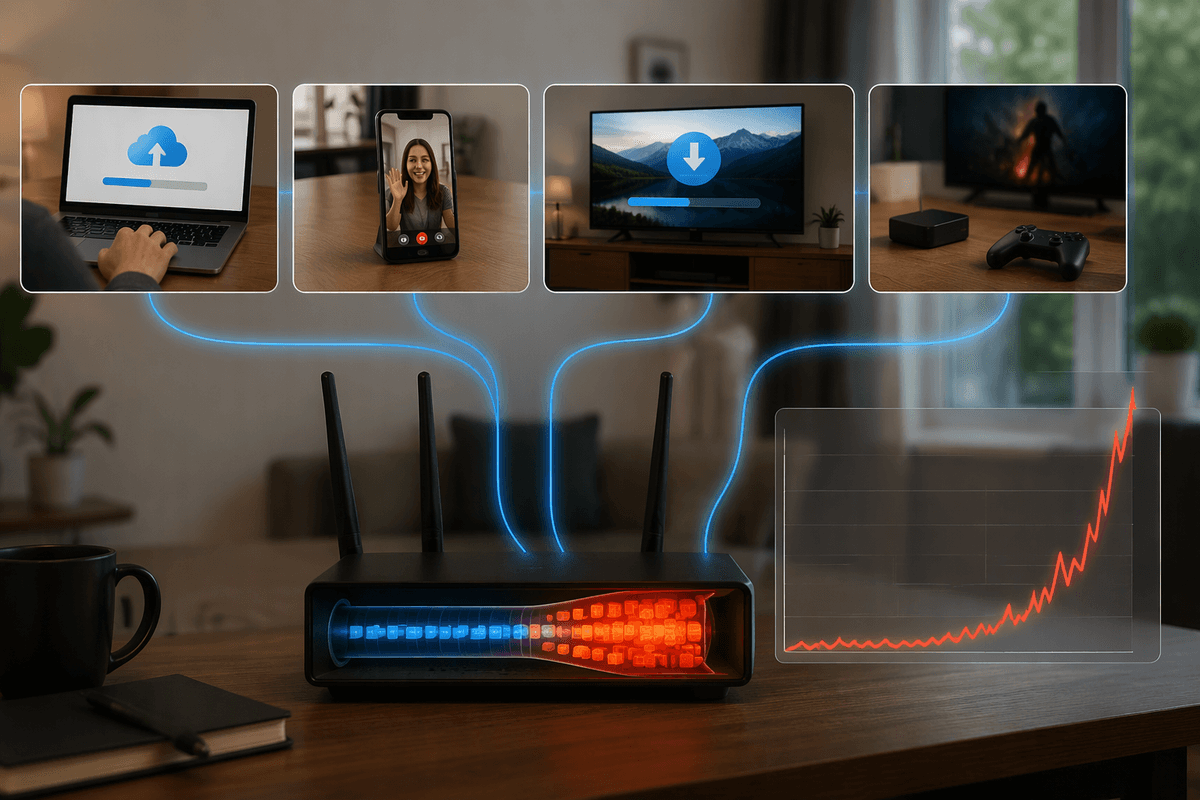
You’ve probably seen the “network busy” pattern: everything seems fine, then someone starts an upload, a video call, or a big download and Stadia suddenly turns blurry, stutters, or your inputs feel delayed. That isn’t always “not enough speed.” It’s often bufferbloat—your router or modem queues too much traffic, so latency spikes while it tries to be “helpful” moving data.
The practical fix is to control the queue. If your router supports QoS/SQM (often called Smart Queue Management, Cake, or FQ-CoDel), turn it on and set your upload and download limits slightly below your real speeds (start around 85–90%). Then prioritize gaming or the Stadia device. If you don’t have SQM, your best workaround is social: pause cloud backups, set large downloads to run overnight, and avoid heavy uploads during play. The limitation is real: some ISP gateways and older routers simply can’t manage latency under load.
Tighten the route: modem, router, DNS, and ISP factors
When Ethernet and traffic control still leave you with random spikes, look at the path between your device and the wider internet. Start with the basics that actually change behavior: reboot modem and router (not just “restart Wi‑Fi”), then check for firmware updates on both. If you’re using an ISP gateway plus your own router, avoid double NAT by putting the gateway in bridge mode (or your router in access point mode). Double NAT won’t always break Stadia, but it can add weirdness when the connection has to recover from brief drops.
DNS is a low-effort test: try a public resolver like 1.1.1.1 or 8.8.8.8 and see if sessions start faster or feel steadier. If Stadia still degrades mostly at peak evening hours, that’s often ISP congestion or routing, not your home setup. The hard part is you may not be able to “fix” it without switching plans, swapping modems, or pushing your ISP for a line check.
Optimize the device: browser settings, hardware decode, updates
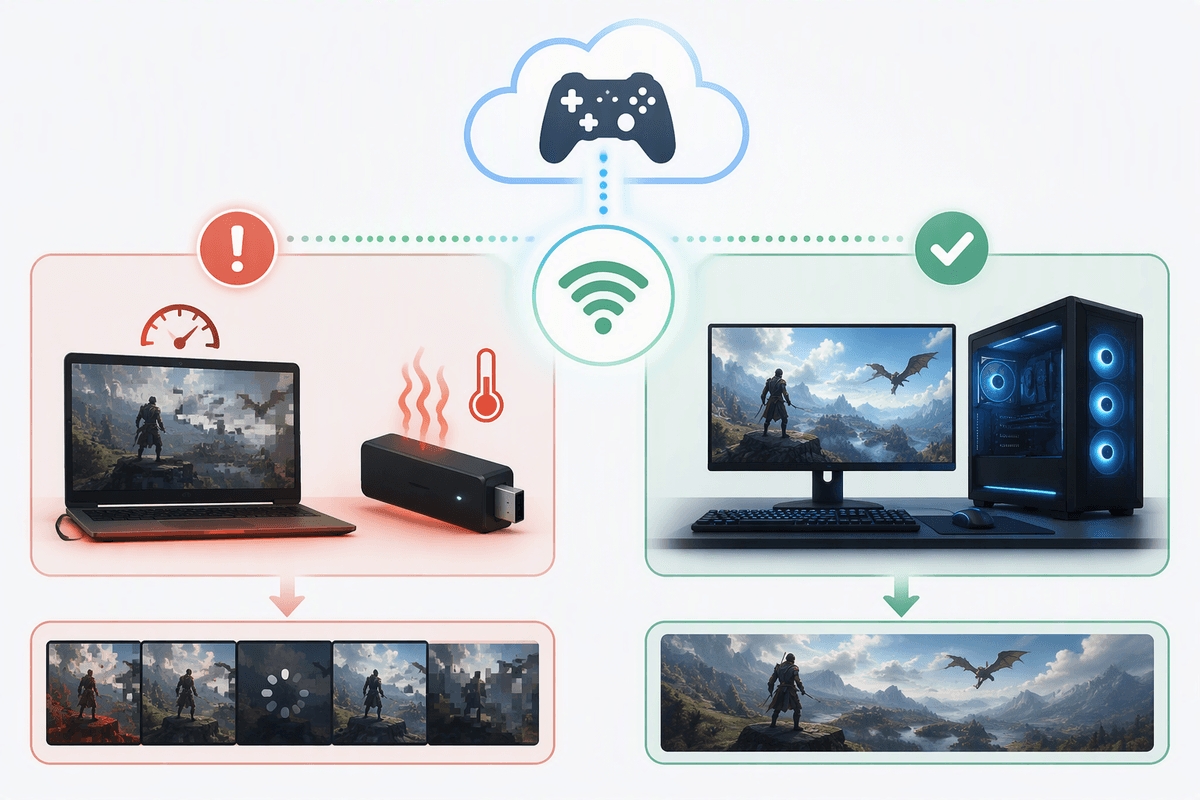
Sometimes the network is fine and the device is the bottleneck. On a computer, use a modern Chromium-based browser and keep it updated; out-of-date builds can regress video playback and controller timing. Close extra tabs (especially video, Discord streams, or anything animated) and turn off heavy extensions like ad blockers, script blockers, “sleeping tab” tools for your Stadia session. If the stream looks sharp but feels uneven, check that hardware video decode is actually being used—on some systems a driver update (or rollback) is what flips smooth playback back on.
On TVs and streaming sticks, update the OS/app, reboot, and confirm you’re on the right HDMI input settings (some sets need “Enhanced”/“HDMI 2.0” enabled). Power-saving modes can downclock and cause stutter; use a normal or performance mode while playing. The limitation is real: older laptops and budget streaming devices can struggle with high-bitrate 4K even on perfect internet.
Tune picture and feel: resolution, HDR, TV mode, controller
A lot of “lag” reports are really picture settings fighting the stream. Start by forcing 1080p for a few sessions; if the blur and stutter disappear, 4K is pushing either your device decode, your Wi‑Fi, or your TV’s HDMI path. HDR is similar: if highlights look washed out, colors crush, or the image flickers, turn HDR off and retest. On many TVs, you’ll also need to enable the right HDMI mode (“Enhanced”/“Deep Color”) for clean 4K HDR—otherwise you can get odd handshakes and periodic drops.
For feel, put the TV in Game Mode (or low-latency mode) on that input; it cuts extra processing that adds noticeable delay. If you use a controller, prefer a direct USB connection when troubleshooting, and keep Bluetooth devices close with fresh batteries. The trade-off is convenience: the “prettiest” settings often cost stability.
Troubleshoot by symptom and lock in a repeatable setup
You’ll get to a fix faster if you follow the symptom. Blurry drops or “network busy” that happen when someone else uses the internet usually means congestion: turn on SQM/QoS, cap speeds a bit, or schedule uploads. Micro-stutters that come and go with distance point to Wi‑Fi: switch to 5/6 GHz, move the router, or add a closer wired access point. Constant input delay with a stable picture is often TV processing or controller path: enable Game Mode, try USB, and disable HDR or 4K for a test.
Once it’s stable, lock it in: keep one “known good” profile (Ethernet or a specific SSID/band, fixed resolution, Game Mode, minimal extensions) so you can tell when a new update, new device, or a household change breaks it.