Why Bixby keeps popping up, and what you can change
You’re usually not “opening Bixby” so much as triggering it. On many Galaxy phones, the Side key is set to launch Bixby with a long-press, so a pocket press or a grip while pulling the phone out can do it. Some models also keep voice wake-up listening enabled, so “Hi, Bixby” (or similar sounds) can wake it unexpectedly. Bixby can also be baked into the home screen through a left-most panel or suggestions. The good news: these are mostly settings switches, and they’re reversible, though exact menus vary by One UI version.
Decide what “disable Bixby” means for your phone
“Disable Bixby” can mean a few different things, and picking the right target keeps you from breaking shortcuts you actually like. If Bixby only appears when you press and hold the Side key, you don’t need to touch voice features or apps—just remap that button. If it starts talking after random sounds, focus on Voice Wake-up and any always-listening options. If it shows up as a home screen page or “cards,” you can remove that panel without changing buttons or voice at all.
Also decide how far you want to go: stopping launches is usually reversible in Settings, while uninstalling or disabling Bixby components (when your model allows it) can remove features but may be blocked by your carrier or One UI version.
Stop Bixby from opening with the Side key
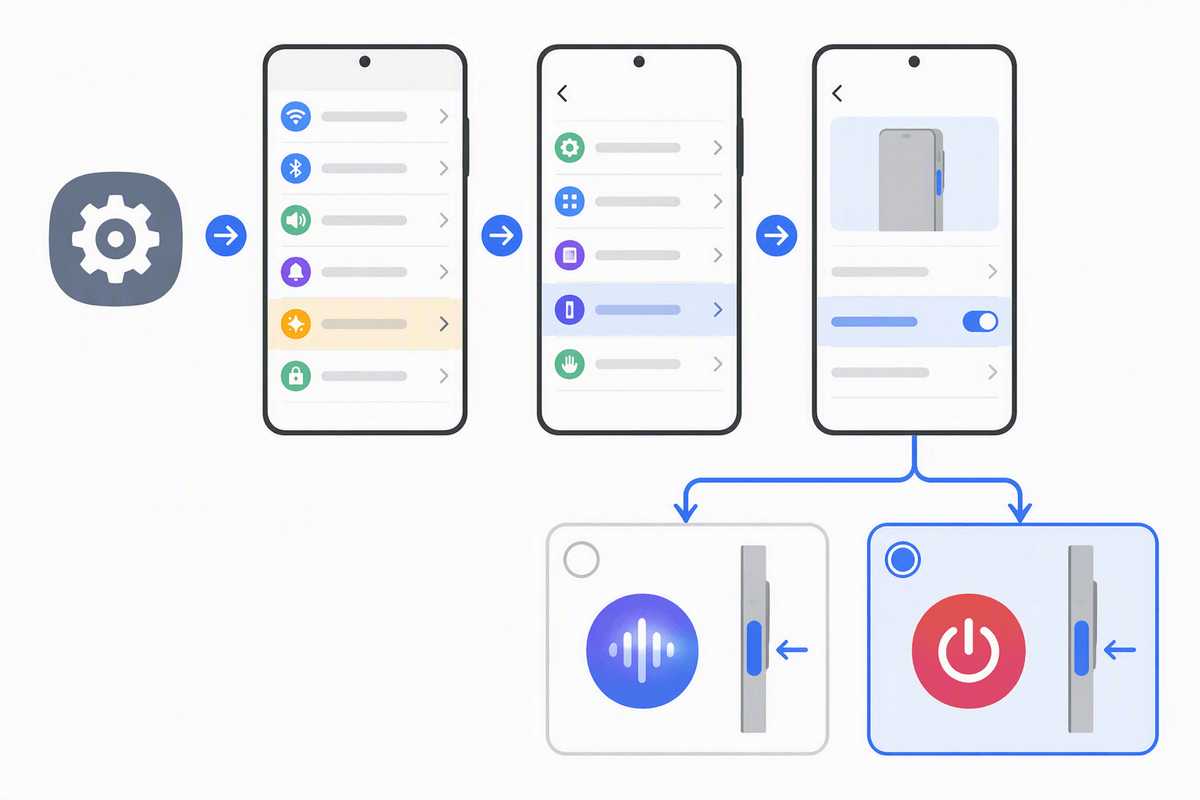
The most common accidental trigger is the Side key long‑press. Open Settings > Advanced features > Side key (on some phones it’s Settings > Advanced features > Side key/Power button). Under Press and hold, switch from Wake Bixby to Power off menu. That keeps the button useful without turning Bixby on.
While you’re there, check the Double press action. If it’s set to Bixby or “Open app” pointing at a Bixby tool, change it to Quick launch camera or another app you actually use. On a few models, Samsung asks you to sign in to Bixby before you can change this; if that happens, complete the prompt once, remap the key, then you can ignore Bixby afterward.
Turn off Bixby Voice and Voice Wake-up listening
You’ll notice voice triggers when Bixby launches without any button press—often from muffled speech, a TV, or the phone waking in a pocket. Open the Bixby app, tap the Menu (or your Profile), then go to Settings > Voice wake-up and turn off Wake with “Hi, Bixby”. If you see options like Wake-up when phone is locked or Voice wake-up while using apps, switch those off too.
Also disable Bixby Voice itself if you never use it: in the same Bixby settings area, turn off Bixby Voice (wording varies). The practical trade-off is you lose hands-free commands; the benefit is fewer accidental launches and slightly less background listening, though some menus may require a one-time Samsung account sign-in to change.
Remove Bixby from the home screen experience
If Bixby feels like it’s “part of your home screen,” it’s usually the left-most panel that opens when you swipe right from the first home page. Long-press an empty spot on the home screen to enter edit mode, then swipe to the far-left panel. Toggle it off, or switch it from Bixby Home/Samsung Free to Google Discover (if your phone offers that option). This change is reversible and doesn’t affect the Side key or voice settings.
Also check for Bixby-related widgets or “suggested apps” tiles you don’t want. Remove them like any other widget (long-press > Remove). On some One UI versions, Samsung may re-enable the left panel after a major update, so if it comes back, this is the first place to look.
Silence Bixby notifications, permissions, and background activity
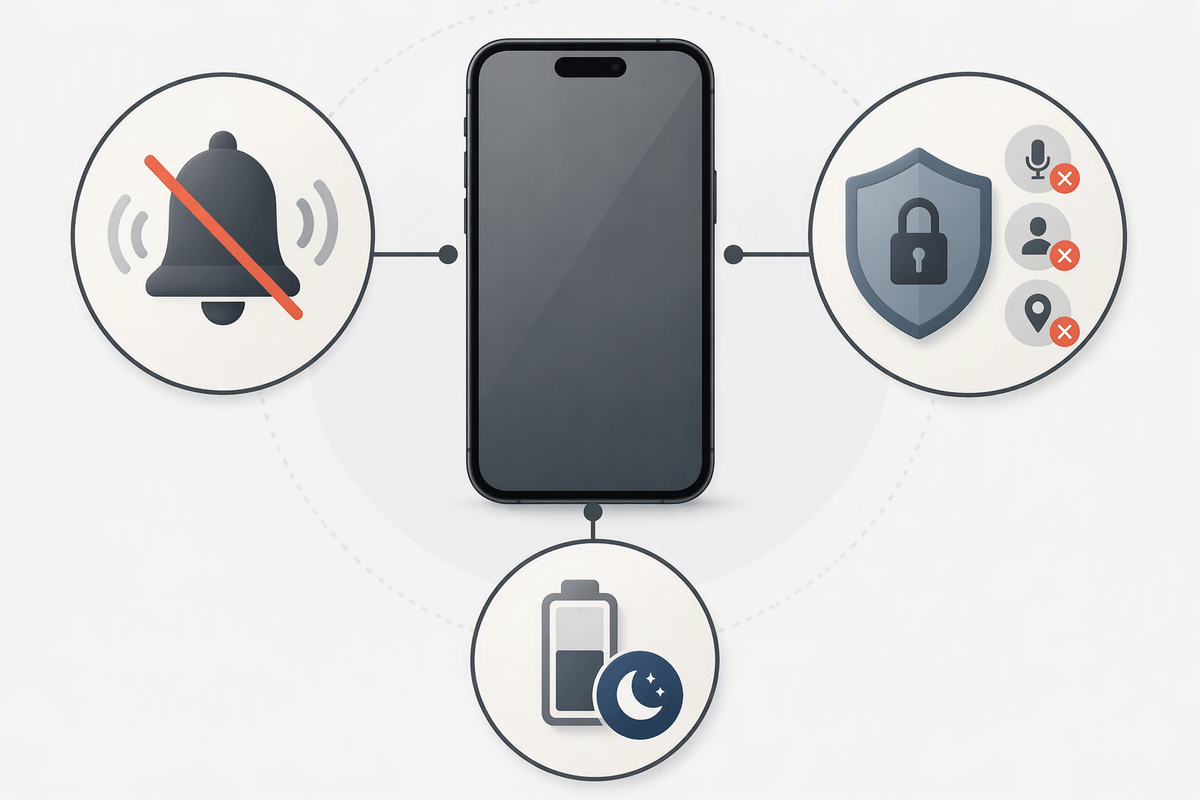
You can stop most “nagging” by cutting off Bixby’s notifications and its ability to do things in the background. Go to Settings > Notifications > App notifications, find Bixby Voice, Bixby, and Bixby Routines/Modes and Routines (names vary), then switch notifications off or at least disable “Marketing”/“Tips” categories. If you still want routine alerts, keep only the categories you recognize.
Then open Settings > Apps > (Bixby app) > Permissions and set things like Microphone, Contacts, and Location to Don’t allow unless you truly use them. Finally, in Battery, set Bixby apps to Restricted or Deep sleeping apps. The trade-off: some widgets, reminders, and routines may update less reliably.
Disable or uninstall Bixby apps (when available)
If you want Bixby to stay out of the way long-term, check whether your phone will let you disable or uninstall its parts. Go to Settings > Apps, tap the filter/sort, and enable Show system apps (wording varies). Search “Bixby,” then open items like Bixby Voice, Bixby Service, and any Bixby-branded add-ons. If you see Uninstall, use it. If you only see Disable, that’s still effective—tap it, then confirm.
Don’t be surprised if some entries only allow Force stop and not disable/uninstall; carriers and One UI versions often lock core components. Also keep Modes and Routines (formerly Bixby Routines) if you rely on automations—removing or disabling it can break scheduled changes like Wi‑Fi, sound mode, or driving rules.
A quick checklist, plus fixes if Bixby returns
Quick checklist: set Settings > Advanced features > Side key to Power off menu (and change Double press if needed); in the Bixby app, turn off Voice wake-up and any “while locked” listening; remove the left home-screen panel (or switch to Discover); silence Bixby notifications; restrict permissions and battery; uninstall/disable Bixby components where your phone allows.
If Bixby returns after an update, re-check the Side key and the far-left panel first. If it launches from headphones or a car, look for voice-assistant defaults in Settings > Apps > Default apps. Some models require a one-time sign-in to change Bixby settings again.