Online safety starts with your family’s real-world values
Most online safety problems aren’t “tech problems” at first—they’re the same real-world issues your family already handles: kindness, honesty, boundaries, and asking for help. If your child knows what’s okay at school, at a friend’s house, and in public, they can usually spot what’s not okay in a group chat or a game lobby. Start by picking 3–5 non‑negotiables you already enforce offline (for example: don’t share personal info, don’t meet strangers, don’t pile on when someone’s being targeted, come to an adult if something feels weird). Put them in simple language everyone can repeat.
This approach also protects trust. Kids don’t need a parent who reads every message to stay safe; they need a parent whose expectations are predictable and whose reaction is calm when mistakes happen. The practical constraint is time and consistency: a complicated rulebook and five different apps to monitor everything will break down fast. A short set of shared values makes it easier to decide what to do when a new platform shows up or a confusing situation happens.
Match the rules to your child’s age and independence
You’ve probably seen the mismatch: a 7‑year‑old with the same internet freedom as a 16‑year‑old, or a teen treated like they’re still in elementary school. Aim for rules that “fit” your child’s ability to pause, think, and recover from a mistake. For younger kids, keep it simple: shared devices in shared spaces, approved apps and games, no private messaging, and a clear “stop and tell” rule when something feels scary or confusing.
As kids get older, shift from blocking to coaching. Allow more independence (friends list, messaging, limited social media), but add responsibilities: keep accounts private, don’t accept new contacts you don’t know offline, and show you a concerning message without deleting it. The cost is real: fewer controls means occasional bad judgment. Treat that as data for adjusting boundaries, not a reason to panic or spy.
Teach “privacy basics” using simple, repeatable scripts
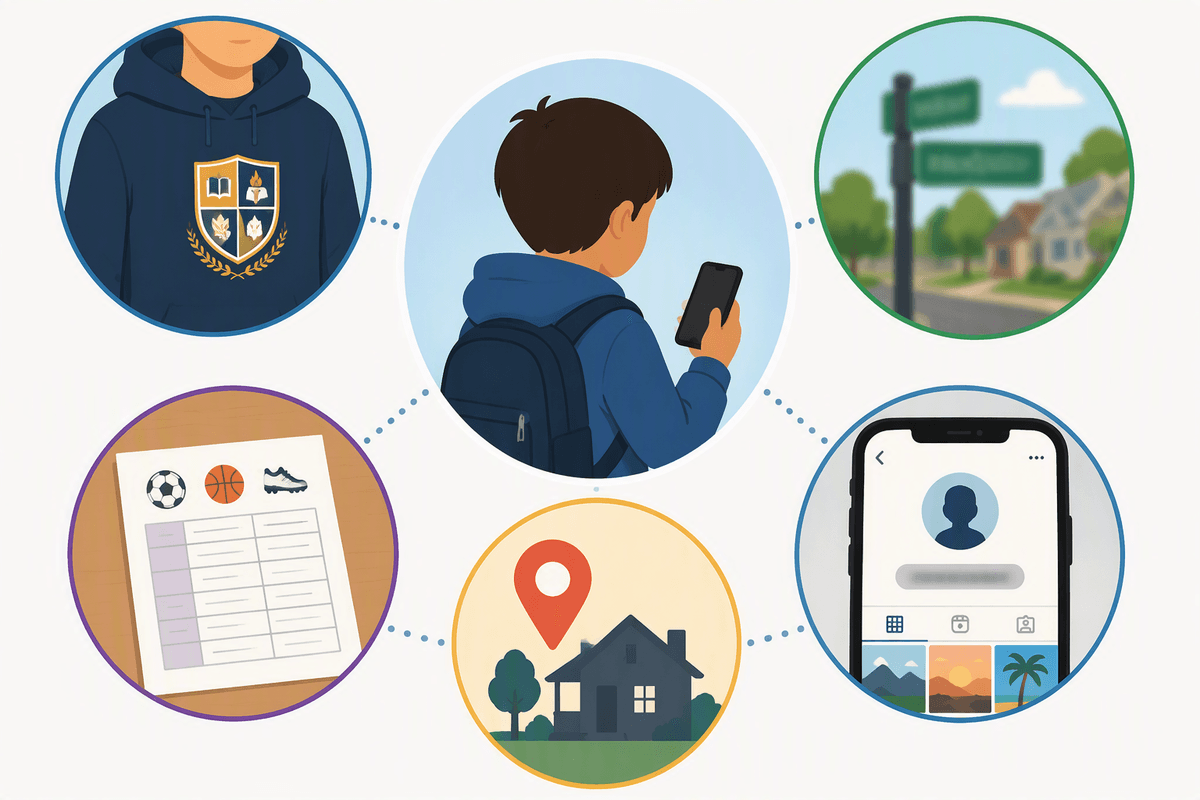
A lot of privacy problems happen because kids freeze in the moment or don’t have words ready. Give them short scripts they can use without thinking: “I don’t share my full name, school, address, or phone,” “I only add people I know in real life,” and “I don’t send photos that I wouldn’t want a teacher to see.” Make it concrete by defining “personal info” as anything that can locate them (school name on a hoodie, a street sign in the background, a team schedule, a screenshot with their username).
Practice like you would a fire drill. Ask, “What would you say if someone in a game asks your age?” or “If a friend wants your login to ‘help’ you?” Then keep the response the same every time: “No, and I’m telling my adult.” The limitation is you’ll need to rehearse it more than once—stress and peer pressure make kids forget.
Accounts, passwords, and devices: set up safety once
The fastest wins usually come from setup, not surveillance. Make your child’s account a “kid account” under your family system (Apple Family Sharing, Google Family Link, Microsoft Family Safety), so installs, purchases, screen time, and location sharing are handled in one place. Turn on automatic updates, device passcodes, and “Find My”/device tracking, and write down recovery options (backup email, phone number) somewhere you can access when a login breaks at 9 p.m.
For passwords, aim for boring and repeatable: a password manager for you, and for kids a strong passphrase plus two-factor authentication where it won’t lock them out. Teach one rule: never share passwords with friends, even “just for a minute.” The practical trade-off is time: expect a 30–60 minute setup session per device, plus a reset or two as they learn.
Messaging, games, and social media: handling strangers and oversharing
You’ll see the same pattern across group chats, game lobbies, and social apps: kids feel pressure to be friendly fast, answer questions, and “keep the streak going.” Set one clear default: they only message and add people they know offline (class, team, family friends). If a platform makes that hard, it’s not a kid-ready platform. In games, teach them to treat voice and chat like a public room: mute early, block quickly, and never “prove” who they are with a photo, real name, school, or location.
Oversharing usually happens by accident, not rebellion. Do a quick monthly “profile check” together: privacy set to friends-only, location off, old posts reviewed, and usernames that don’t include birth year or school. The constraint is social fallout—changing settings can trigger friend drama—so give them a simple line: “My parents’ rule is private accounts.”
Scams, grooming, and “too good to be true” situations
Most “bad” situations start as something flattering or urgent: free Robux, a rare skin, “I can get you followers,” or an adult who “really gets you” and wants to move to a private chat. Teach one simple check: if someone offers a shortcut, a secret, or a prize for speed, it’s a scam until proven otherwise. Pair that with a firm boundary: no codes, no logins, no gift cards, no photos, and no moving to another app—ever.
Grooming often looks like extra attention plus isolation: “Don’t tell your parents,” “You’re mature,” “This is just between us.” Your child doesn’t need to diagnose it; they need a rule that’s easy to follow: stop replying, screenshot, block, and come to you—even if they broke a rule first. The practical constraint is embarrassment, so make your reaction predictable: “Thank you for telling me; we’ll handle it together.”
Cyberbullying, drama, and mental health—what kids need from you
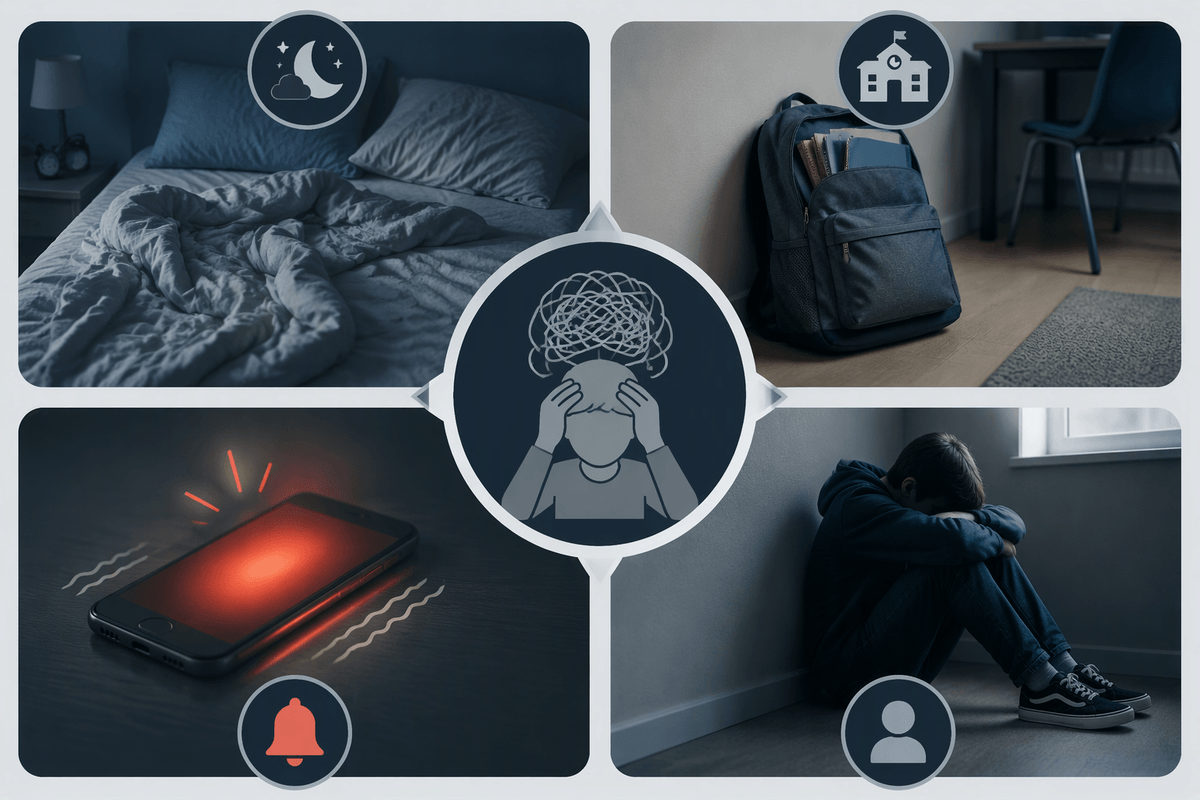
It often starts small: a sarcastic group-chat pile-on, a screenshot shared “as a joke,” or a friend who suddenly stops replying. Treat those as safety issues, not just “drama.” Give your child a simple playbook: don’t respond when emotions are high, take screenshots, mute the chat, and tell an adult before it escalates. If they’re the one who posted something hurtful, focus on repair over punishment: delete it, apologize directly, and step away from the thread. Kids learn more from how you handle the moment than from a long lecture afterward.
Mental health matters as much as privacy settings. Watch for changes that last more than a week—sleep disruption, avoiding school, sudden phone panic, or withdrawing from friends. Create a no-penalty lane for reporting bullying: you won’t take their phone first; you’ll help them document, report in-app, and involve school if needed. The hard part is that solutions take time, and blocking someone can trigger more conflict, so plan for support, not a quick fix.
Create a simple family plan you can actually keep
Most families do better with a short plan everyone can remember than a perfect plan nobody follows. Write down 5 house rules (values-based), 3 “stop and tell” situations (scary, sexual, threatening, or secret-keeping), and what you’ll do first (screenshot, block, report, come to an adult). Add two routines: a monthly 10-minute privacy/profile check, and a weekly “anything weird online?” check-in during a normal moment like driving or dinner cleanup.
Make it workable: pick one place for controls (your phone’s family settings), one shared charging spot at night, and one consequence you can enforce (like losing a specific app for 48 hours, not losing the whole phone). Expect exceptions for school, sports, and travel—build a reset rule instead of starting over.