What “syncing settings” really covers in Windows 10/11
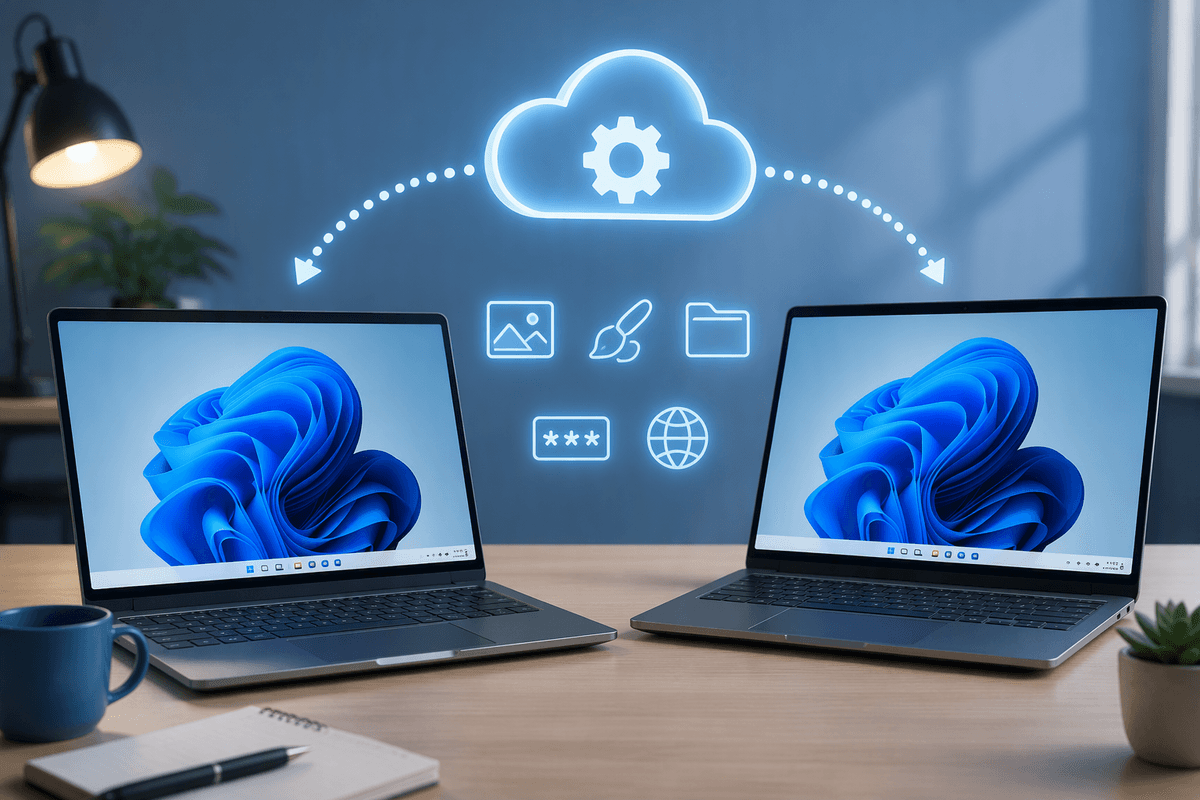
You sign into a second Windows 10/11 PC and expect it to feel familiar—same wallpaper, the same preferences, the same little tweaks. Windows “syncing settings” mostly delivers that kind of comfort, not a full device clone. It can sync things like theme (including background), some language and personalization choices, and certain app and browser-related settings tied to your Microsoft account.
What it doesn’t do trips people up: it won’t automatically move your files, installed programs, printer drivers, or every app’s internal settings. Some items are also blocked or limited on work/school devices by policy, and sync can lag or look “stuck” until both PCs have been online long enough. Treat it as a settings convenience layer, then plan separately for files and apps.
Start with the right account: local vs Microsoft vs work account
The account you use is the fork in the road. A local account keeps everything on that PC, which is great for privacy and simple one-off machines, but it can’t sync Windows settings to your other devices because there’s nothing shared to sync through. If your goal is consistency across multiple PCs you personally manage, signing into Windows with the same Microsoft account on each device is the most straightforward path.
Work or school accounts (Entra ID/Azure AD) can also sign into Windows, but settings sync is often restricted or customized by your organization’s policies. That’s why two “identical” laptops at the office may not pick up the same theme or preferences, or the sync toggles may be missing entirely. Before you chase settings menus, confirm you’re using the same account type on both PCs and that you’re not mixing a local sign-in on one device with a Microsoft or work sign-in on the other.
Turn on Windows settings sync—and choose what to sync
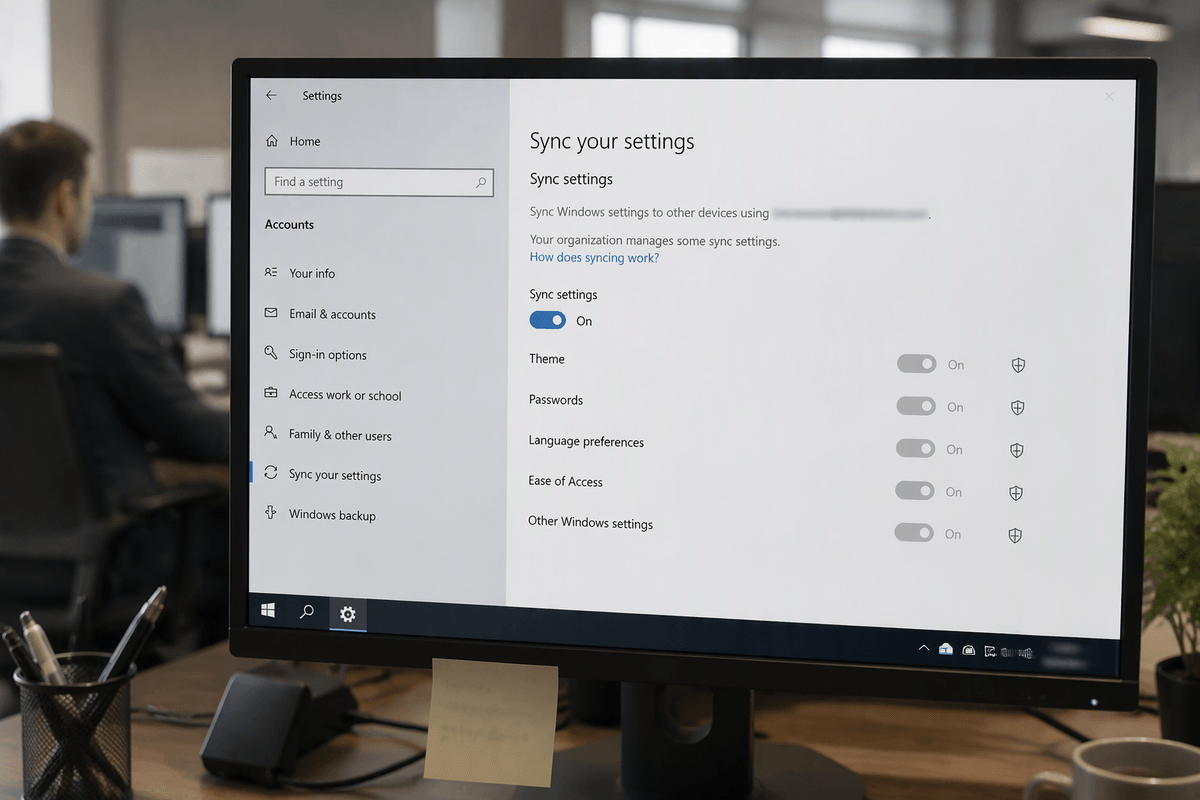
On each PC, open Settings and search for Sync your settings. In Windows 11 this is usually under Accounts → Windows backup (and related sync options), while Windows 10 commonly shows Accounts → Sync your settings. Turn sync on, then be selective: syncing Theme is low-risk, while syncing Passwords or certain browser/app settings is more sensitive if the PC isn’t exclusively yours.
After you enable it, verify it’s actually working: give both machines a few minutes online, then change something obvious (like the desktop background) and see if it follows. If you don’t see the toggles or they won’t stay on, that’s usually one of three things: you’re not signed in with the same Microsoft account everywhere, a work/school policy is blocking sync, or Windows needs time to finish account setup. Sync is convenient, but it can be slow and occasionally inconsistent, so test with one setting before relying on it.
Cover the common gaps: files, desktop folders, and app installs
You’ll feel the limits of settings sync the first time your “Desktop” is empty or your go-to apps aren’t there. For files, use a real file sync: OneDrive is the default on most consumer PCs, and it can keep key folders like Desktop, Documents, and Pictures consistent if you turn on folder backup (often called “Known Folder Move”). That’s the closest thing to making two PCs look the same day-to-day, but it has costs: it uses storage, it can take time on slower internet, and it can create duplicates if you’ve already been saving to multiple places.
Desktop shortcuts are another gap. Syncing the Desktop folder will move the shortcuts, but it won’t install the apps those shortcuts point to, so you may see dead icons until you install the same programs on both machines. Windows can “remember” some Microsoft Store apps, but classic installers (Chrome, Zoom, Adobe tools, device utilities) are still on you. The practical move is to keep a short app list and a single installer stash (or package manager) so a new PC doesn’t turn into a scavenger hunt.
Sync browsers and passwords without creating new chaos
You’ll usually get a smoother “same experience” result by letting your browser do most of the syncing, then letting Windows handle only what it’s good at. If you use Edge with the same Microsoft account, favorites, passwords, extensions, and open tabs can follow you—just confirm you’re signed into Edge itself, not only Windows, and check Edge’s sync settings. If you prefer Chrome or Firefox, sign into that browser on both PCs and enable its own sync. This avoids the common trap of expecting Windows settings sync to move browser data that’s actually stored and managed by the browser.
Passwords are where things get messy fast. Mixing multiple password managers (Windows Credential Manager, Edge/Chrome built-in, and a third-party manager) can create duplicates and confusion about “which one is right.” Pick one primary place to save passwords, then turn off saving in the others. On shared or lightly managed PCs, consider skipping password sync entirely and using a dedicated password manager with a strong master password and MFA. The trade-off is setup time, but it’s easier to keep consistent—and safer—long term.
Set up a repeatable “new PC” checklist for consistent setups
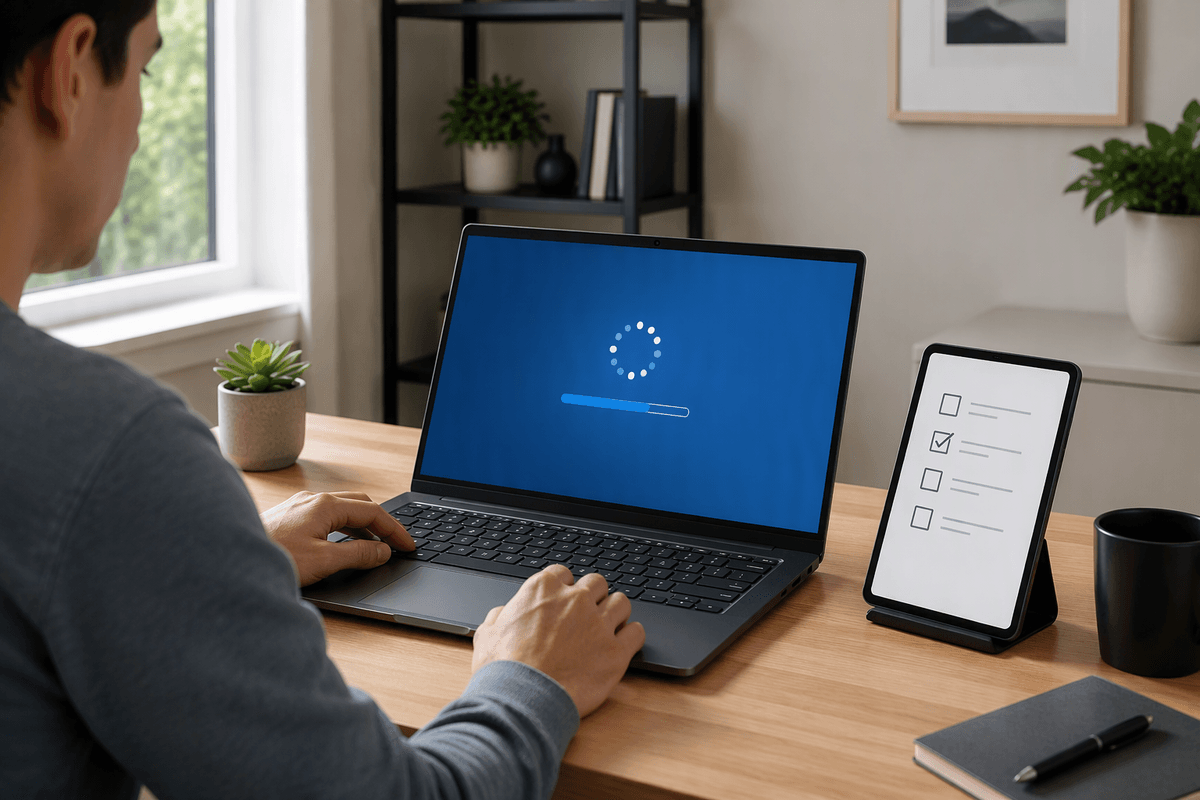
You’ll save the most time by treating a new PC like a small, repeatable setup project instead of a one-off. Keep a simple checklist in a notes app and run it the same way every time: confirm you’re signing into Windows with the correct account (Microsoft vs work), run Windows Update until it’s fully caught up, then turn on settings sync and test with one visible change (theme/background) before moving on. Set up OneDrive and enable Desktop/Documents/Pictures backup if you want your everyday folders to match across devices.
Then handle the parts Windows won’t: install your “core apps” from a short list (browser, office/PDF, chat/meeting tools, your printer/scanner utility if needed), sign into the browser and enable its sync, and pick one password system to avoid duplicates. Finally, do the boring but important checks: confirm BitLocker/device encryption status, set your default apps, and reconnect printers and Bluetooth devices. The constraint is time and bandwidth—updates and OneDrive can take hours on slow internet—so plan the first setup when you can leave the PC online.
When sync doesn’t work: quick fixes and what to check first
You notice it when one PC picks up the wallpaper and the other stubbornly stays the same, or the sync toggles keep flipping back off. Start with the boring checks that solve most cases: confirm both PCs are signed into Windows with the exact same Microsoft account (Settings → Accounts), then confirm you’re online and time/date are correct (bad clock can break sign-in and sync). Run Windows Update and reboot—sync often behaves poorly on a half-updated system. Then make one obvious change (theme/background) and give it 5–15 minutes on both machines; don’t judge it while one laptop is asleep or on a captive Wi‑Fi login.
If the sync options are missing or say they’re managed, that’s usually a work/school policy (or you’re signed in with a work account), and you won’t be able to “fix” it locally. If settings still won’t propagate, sign out of the Microsoft account on that PC and sign back in, or toggle sync off/on once. Practical limitation: even when it’s working, Windows settings sync is not instant, and it’s not designed to be a reliable “deploy my setup” tool on a deadline.
A realistic end state: consistent PCs without over-automating
The realistic end state is two (or three) PCs that feel familiar because the essentials line up: same account, a consistent theme, the same browser profile, and the same everyday folders showing up through OneDrive. You still accept a little manual work—printers, audio devices, specialty utilities, and some app settings won’t reliably follow you, and trying to force a “perfect clone” usually adds more breakage than benefit.
A good rule is: automate what’s reversible and low-risk (theme, language, basic preferences), and be deliberate with what’s sensitive or messy (passwords, default apps, extra startup tools). If you can set up a new PC in under an hour plus download time, you’ve hit the sweet spot: consistent enough to be comfortable, without building a brittle system that only works when everything is online and cooperating.