Figure out what “5GHz not working” really means
“5GHz not working” usually means one of three things: you never see the 5GHz network name (SSID), you see it but the device won’t join, or it connects but performance is jumpy—fast one minute, unusable the next. Treat these as different problems. If the SSID is missing, you’re often looking at router settings, channel choice, or range. If it won’t connect, think password/security type or device compatibility. If it connects but stutters, distance, walls, and interference are common culprits. Start by noting which symptom you have and where it happens in the home.
Check if your device can actually use 5GHz Wi‑Fi
A common “missing 5GHz” situation is simply that one device can’t use it. Many older phones, budget laptops, smart plugs, printers, and some TVs are 2.4GHz-only, even if other devices on your network can see and join 5GHz just fine. If you can, check the device’s Wi‑Fi spec for “802.11a/n/ac/ax” (usually supports 5GHz) versus “802.11b/g/n” (may be 2.4GHz-only). On Windows, look at the wireless adapter properties; on macOS, the Wi‑Fi details will show supported bands.
Also watch for “it supports 5GHz, but not your 5GHz.” Some devices can’t use DFS channels, and some struggle with newer Wi‑Fi 6-only settings. If one device fails while others work, update its OS/driver first; if it still won’t join, plan on using 2.4GHz for that device or upgrading the adapter.
Do the fast resets that fix most 5GHz glitches
When 5GHz suddenly disappears or refuses to connect on multiple devices, do a few “cheap” resets before changing settings. First, toggle Wi‑Fi off/on on the device and either “Forget” the network and rejoin, or restart the device entirely. Then power-cycle the network in the right order: unplug the modem (if you have one) and the router, wait 30–60 seconds, plug the modem back in, wait until it’s fully online, then plug the router back in and give it 2–3 minutes to finish booting.
If the SSID shows up but joins fail, retype the password carefully (copied passwords can include hidden spaces), or “Private Wi‑Fi address/MAC randomization” setting on that device to test. Finally, check for router firmware updates and apply them during a quiet time—updates can reboot your Wi‑Fi and interrupt calls, streams, and smart-home devices for several minutes.
Rule out range problems: 5GHz may be too “short‑reach”
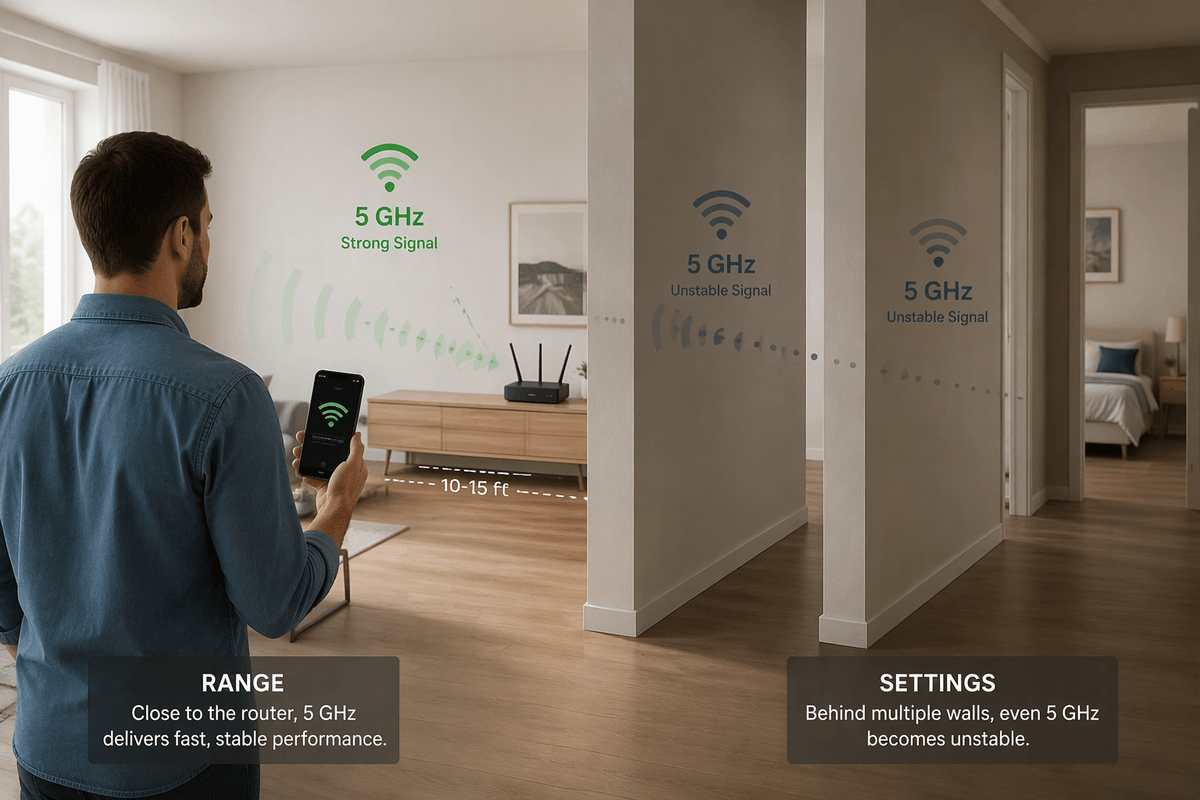
You’ll often “lose” 5GHz simply by walking a room or two away. Compared with 2.4GHz, 5GHz has a harder time getting through dense materials, so a signal that looks fine near the router can turn unstable behind a couple of walls, a bathroom tile wall, a fireplace, or a floor/ceiling. A quick reality check: stand within 10–15 feet of the router with clear line of sight and see if the 5GHz SSID appears and stays connected. If it behaves there but not in the back bedroom or basement, you’ve found a range problem, not a settings problem.
Try moving the router higher and more central (not inside a cabinet), and angle external antennas so some are vertical and some are slightly tilted. If the router must stay by the modem in a corner, the practical fix is adding a wired access point or mesh node closer to the weak area; a cheap “range extender” can help, but it often cuts throughput and adds latency.
Fix channel and interference issues that hide the network
You’ll also “lose” 5GHz when the router is using a channel your device won’t scan or won’t stay on. A common culprit is DFS channels (often in the 52–144 range). They can work well, but some TVs, printers, and older phones simply won’t show the SSID on DFS, and the router may temporarily stop broadcasting if it detects radar. In your router’s Wi‑Fi settings, set the 5GHz channel to a non‑DFS option like 36, 40, 44, or 48, then save and let the Wi‑Fi restart.
If the network appears but performance is erratic, interference is usually the “invisible” cause. Neighbor networks, especially in apartments, can crowd the same few channels. Use your router’s Wi‑Fi scan (if it has one) or a simple Wi‑Fi analyzer app to see which 5GHz channels are busy, then pick a cleaner channel and retest. Expect a little trial and error, and plan changes for off-hours since each change briefly drops connections.
Security and SSID settings that quietly block connections
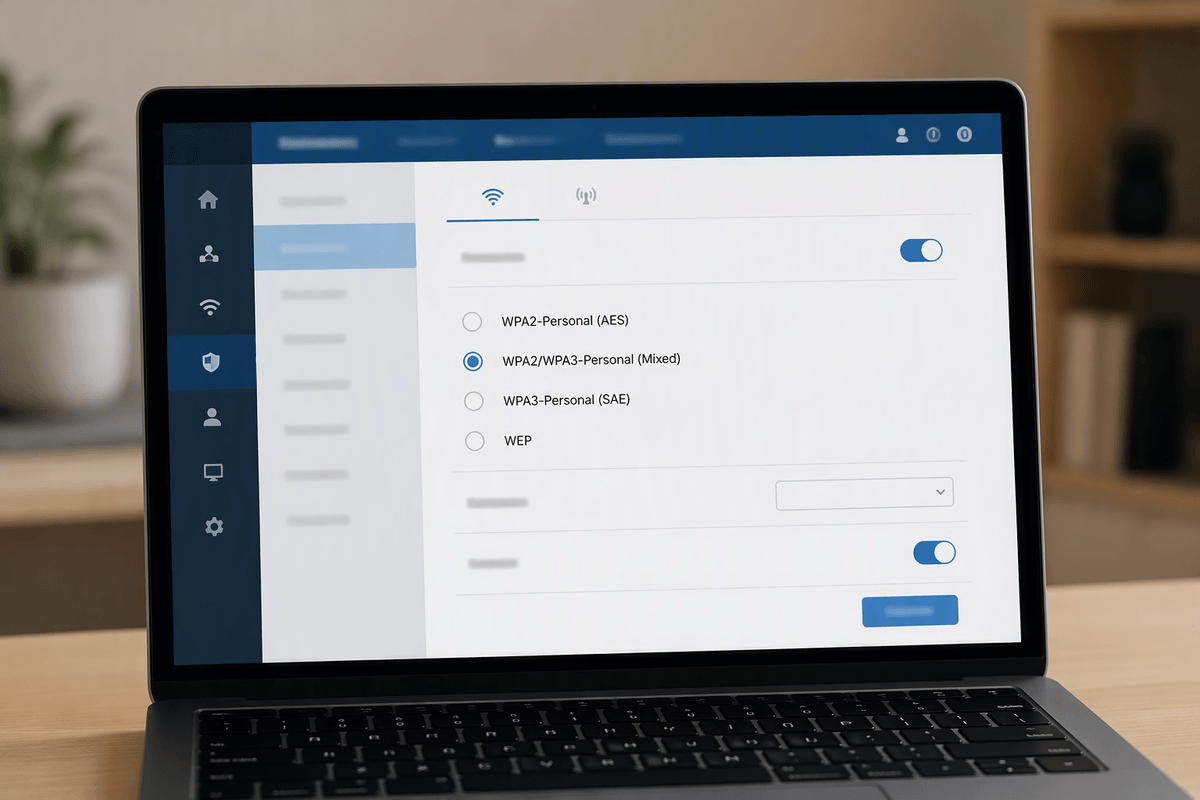
You’ll sometimes see the 5GHz network but get stuck at “wrong password” or endless connecting because the security mode doesn’t match what the device supports. In the router’s 5GHz settings, use WPA2-Personal (AES) or WPA2/WPA3 mixed mode if you have a blend of newer and older devices. Avoid WEP and WPA (older, insecure), and be cautious with “WPA3-only” because many TVs, printers, and older laptops simply won’t join. If your router offers “PMF/802.11w,” set it to Optional rather than Required for compatibility testing.
SSID choices can also quietly trip you up. If 2.4GHz and 5GHz share one network name with band steering, some devices cling to 2.4GHz or fail the handoff and look “unstable.” Create separate names like “Home-2G” and “Home-5G” and join explicitly to test. Keep the SSID simple (letters/numbers), then retest—some gadgets still choke on special characters.
Router Wi‑Fi modes and widths: when “faster” breaks compatibility
You’ll also run into “5GHz won’t connect” when the router is set to an aggressive Wi‑Fi mode or extra-wide channel width. A common example is turning on 160 MHz width (or “Auto 20/40/80/160”) to chase higher peak speeds. Some laptops, TVs, and older phones either don’t support 160 MHz or behave poorly on it, so the network may vanish, connect and drop, or cap out oddly. For troubleshooting, set 5GHz channel width to 80 MHz (or even 40 MHz in crowded apartments), then retest stability before chasing maximum throughput.
Do the same with the wireless mode. If your router offers “ax-only” (Wi‑Fi 6 only), “ac-only,” or “n-only,” avoid locking it unless every device is confirmed compatible. “Mixed” mode is usually safest. Features like MU‑MIMO and beamforming are typically fine, but if you’ve tried everything else, disable one at a time to test—each change costs you a brief Wi‑Fi outage while the radio restarts.
When it’s time for deeper troubleshooting or replacement
When you’ve tried sane channels (non‑DFS), WPA2/WPA3 mixed, 80 MHz width, and a clean SSID, but 5GHz still drops on multiple devices at close range, it’s time to suspect the router, modem, or upstream line. Check the router’s system log for repeated “radio reset,” DFS/radar events, or frequent reboots. Test with a known-good Ethernet connection to confirm the internet itself is stable, then try a factory reset and manual reconfigure (restores take old problems with them). If the router is older (Wi‑Fi 5 era) or runs hot, replacement with a current Wi‑Fi 6/6E router or a mesh/AP setup is often the fastest fix.