Digital note-taking today: what you’re really trying to solve
You probably don’t have a “note app” problem. You have a retrieval problem: something mattered in the moment, and later you can’t find it, trust it, or reuse it. Start by naming your most common situations—quick capture on the go, meeting or class notes you must review, reading highlights you want to reference, or project notes that need to survive months of changes.
Once you’re clear on those situations, the right setup becomes a trade-off between speed (capture with low friction), structure (enough organization to browse), and search (fast recall across devices). Every extra feature has a cost: more steps, more decisions, and more chances to stop taking notes at all.
Choose your main capture device: phone, laptop, tablet, or e-ink
You’ll take most of your notes on the device that’s already in your hand when something happens, so pick a “default” capture device before you pick apps. For many people, that’s the phone: it wins on availability and speed for ideas, tasks, photos of whiteboards, and quick voice memos, but it’s slower for long thinking and easy to bury in notifications.
A laptop is the most reliable workhorse for meetings, classes, and anything that turns into a document—fast typing, easy multi-window research, and predictable file exports. The trade-off is mobility: you won’t always open it for a 10-second thought. A tablet sits between them: great for reading, annotating PDFs, and mixed handwriting + typing, but it adds cost, charging, and stylus management. E-ink is best when you want distraction-free writing and long battery life, with weaker app ecosystems and slower syncing.
Typing, handwriting, or both: picking the right input tools
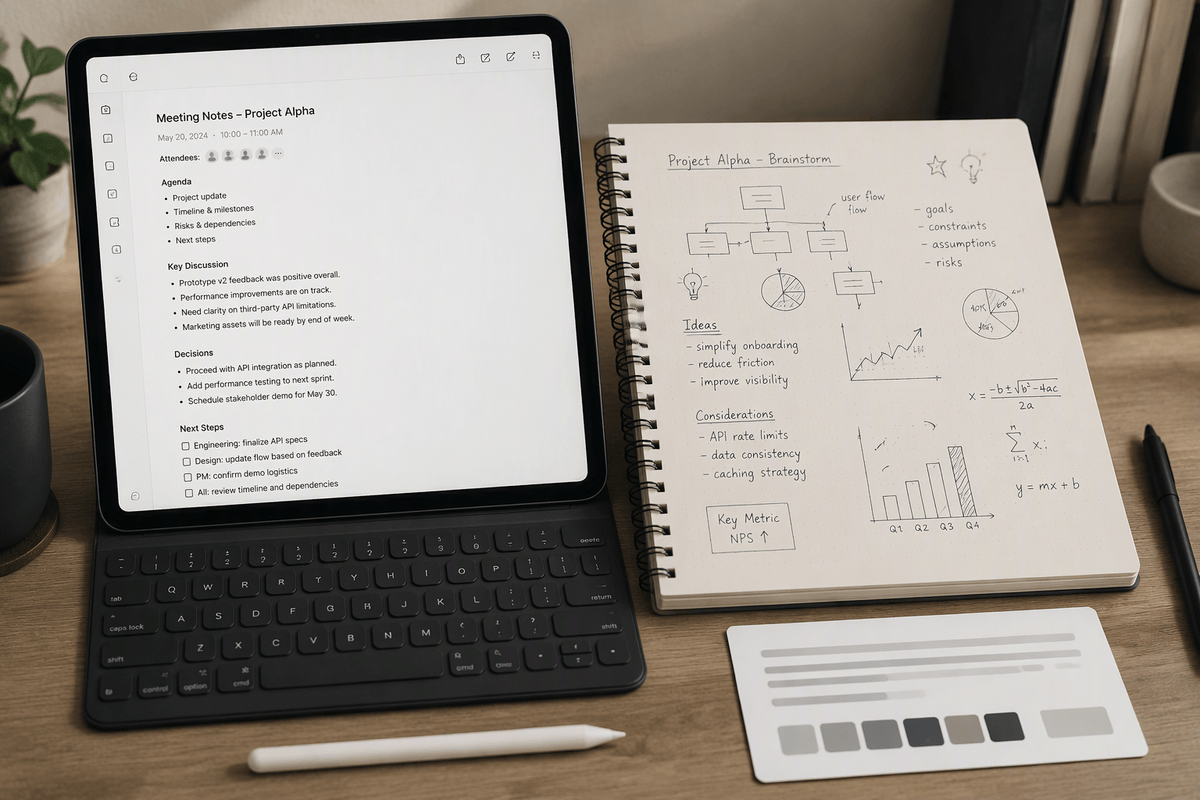
You’ll feel the typing vs handwriting choice most when you review later. Typing is easiest to search, fastest to clean up into an email or doc, and more consistent for meeting minutes, lecture outlines, and project logs. A compact Bluetooth keyboard can make a tablet behave like a laptop, but it adds one more thing to pair, charge, and carry.
Handwriting is often better for diagrams, math, sketches, and messy thinking where structure emerges as you write. It’s also quieter in some settings. The catch is retrieval: unless your app has solid handwriting search or you rewrite key points, handwritten pages can turn into a “nice archive” you rarely use.
For most students and knowledge workers, the practical default is both: type for anything you’ll need to reuse verbatim, handwrite for anything visual or exploratory, then end each session by adding a short typed summary and 3–5 keywords for search.
All-in-one note apps vs linked knowledge systems
You’ll notice a fork in the road once your notes start to span classes, clients, and months: keep everything in one “home base” app, or build a linked knowledge system where notes behave more like a personal wiki. All-in-one apps (think folders/notebooks, tags, strong search, quick capture) tend to win on reliability and habit formation. You open one place, dump the note, and trust you can find it later. The downside is that structure can turn into housekeeping—deciding where everything goes, maintaining tags, and reorganizing when projects shift.
Linked systems (backlinks, graph views, atomic notes) shine when you’re doing research, writing, or long-running problem solving and want ideas to connect across projects. They also make “reuse” easier: a concept note can feed many outputs. The trade-off is setup and upkeep: naming conventions, consistent linking, and occasional refactors. If you can’t explain your system in one sentence, it’s probably too heavy for daily capture.
The short list of note apps worth considering in 2026

If you want a dependable “home base” with minimal fuss, start with Apple Notes or Microsoft OneNote. Apple Notes is hard to beat for fast capture, decent search, and zero extra setup if you live on iPhone/Mac. OneNote is a strong default for students and office-heavy teams because it handles mixed typing + handwriting well and fits naturally with Microsoft accounts and shared notebooks.
If your notes also need to function as a project workspace, Notion is the practical pick when you want pages, databases, and collaboration in one place, and it can work offline when you prepare pages ahead of time. If you care most about long-term ownership and linking ideas across years, Obsidian is the standout: your notes are local Markdown files, and Sync is optional (paid) if you want the simplest cross-device setup. The real cost across all of these is commitment: moving later takes time, and team features usually mean ongoing subscription fees.
Don’t lose your notes: sync, offline access, backups, exports
You only trust a note system after it survives a bad day: dead battery, no Wi‑Fi, lost device, or an account lockout. Check how your app behaves offline in your real life. If you’re on campus Wi‑Fi or traveling, you want notes that open instantly and let you create new ones without “pending sync” anxiety. For team notebooks, confirm what happens when two people edit the same note and whether conflicts are obvious or quietly merged.
Then treat backups and exports as non-negotiable. Cloud sync is not a backup; it can happily sync mistakes and deletions. Aim for at least one routine export you could restore from (PDF or HTML for archives, and a structured export like Markdown or .docx for moving later). If your tool doesn’t offer clean exports, the practical cost shows up when you switch jobs, graduate, or your subscription changes.
Power tools that upgrade your notes: scanning, OCR, audio, and AI
You’ve probably had the moment where the “important note” is a photo of a slide, a paper handout, or a whiteboard that you can’t search. The simplest upgrade is a scanning workflow: use your phone to capture documents in consistent lighting, crop automatically, and file them straight into your home-base app. OCR (text recognition) is what turns those scans into something you can retrieve later—use it for printed PDFs, receipts, textbook pages, and even tidy handwriting if your tool supports it well, but expect errors on messy notes and math.
Audio can rescue fast conversations: record lectures or meetings only when permitted, then attach the clip to the same note as your outline so review stays anchored. AI features are most useful for after-the-fact work—summaries, action items, and turning rough notes into a clean agenda—yet the costs are real: subscriptions, occasional wrong details, and privacy policies you may not want for client or research material.
A practical way to pick your setup and start this week
Pick one “home base” app and one default capture device, then force everything through them for seven days. Start with three buckets only: Inbox (uncategorized), Active (current classes/projects), Archive (done). For each meeting/lecture, choose one input: type if you’ll reuse wording; handwrite if you need diagrams; then end with a 2–3 sentence typed summary plus 3 keywords. Set a 10‑minute weekly reset: move notes out of Inbox, export a backup, and check offline access. If anything feels annoying, remove a step before you add a new tool.