Why customizing Command Prompt pays off day to day
Most people only open Command Prompt when something’s broken, a class lab requires it, or a tutorial says “run this command.” That’s exactly why the defaults feel so bad: tiny text, harsh colors, and a window that opens wherever Windows feels like. A few small tweaks turn CMD into something you can read at a glance, copy from without fighting selection, and scroll back through when output flies by. Those minutes saved add up fast when you’re repeating commands or troubleshooting.
The practical upside is fewer mistakes. Bigger fonts and clearer colors reduce misreading paths, flags, and error messages. Better copy/paste and scrollback make it easier to compare outputs and reuse commands safely. The only real “cost” is spending five minutes learning where settings live, and knowing which changes apply to one shortcut versus becoming the default for every CMD window.
CMD vs Windows Terminal: which app are you actually using?
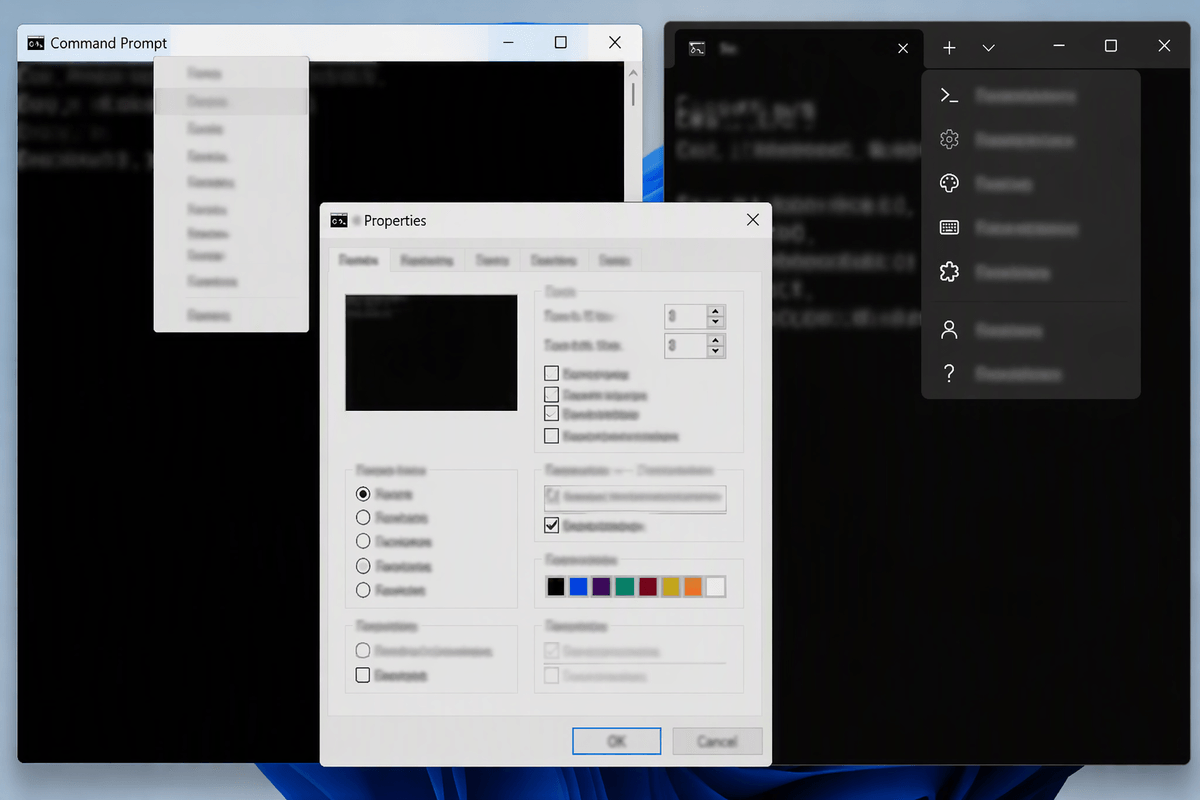
You may think you’re “in CMD,” but on Windows 10/11 you could be using one of a few shells inside different host apps. Classic Command Prompt is usually cmd.exe running in the older Console Host (conhost). Windows Terminal is a newer app that can host multiple shells in tabs—Command Prompt, PowerShell, and WSL—and it has its own settings for fonts, colors, padding, and transparency.
This matters because you can change “the same thing” in two places and see different results. If you right-click the title bar of a Command Prompt window and choose Properties, you’re editing that console’s settings (and sometimes defaults). If you opened “Command Prompt” as a tab in Windows Terminal, those title-bar Properties won’t be the main control; Terminal’s profile settings are. The practical annoyance is troubleshooting a tiny font only to realize you fixed the wrong host.
Control how it opens: location, size, and admin access
A common frustration is CMD opening in a random folder and a cramped window, which makes even simple commands feel fiddly. The most reliable place to control this is the shortcut you actually launch. Right-click your Command Prompt shortcut (Start menu, taskbar, or a pinned shortcut), open Properties, then use Start in to set a consistent default folder (like your project or scripts directory). If you leave it blank, Windows often drops you into System32, which is rarely what you want.
In the same shortcut, set a predictable window size: Layout controls the window dimensions and the screen buffer (how far back you can scroll). For admin access, use Advanced… and check Run as administrator on that shortcut, or use “Run as administrator” when needed. The trade-off is UAC prompts and elevated commands writing files in places you didn’t intend.
Make it readable: fonts, colors, cursor, and transparency
If you ever find yourself leaning toward the screen or squinting at paths, fix readability first. Open a plain Command Prompt window, right-click the title bar, choose Properties, then go to Font. Pick a clean monospace font (Consolas is a safe default) and bump the size until you can read a full command without effort. Then check Layout to keep the window wide enough for long file paths so lines don’t wrap in confusing places.
Colors are about contrast, not style. In Colors, choose a darker background and a lighter text color that stays readable for hours; avoid bright pure-white on pure-black if it gives you glare. The Cursor Size slider is worth adjusting too—too small gets lost, too large can hide characters while you edit. If your build supports it, a bit of Opacity can help you reference something behind the window, but too much transparency makes error messages harder to parse.
Fix the “feel”: QuickEdit, copy/paste, and scrolling history
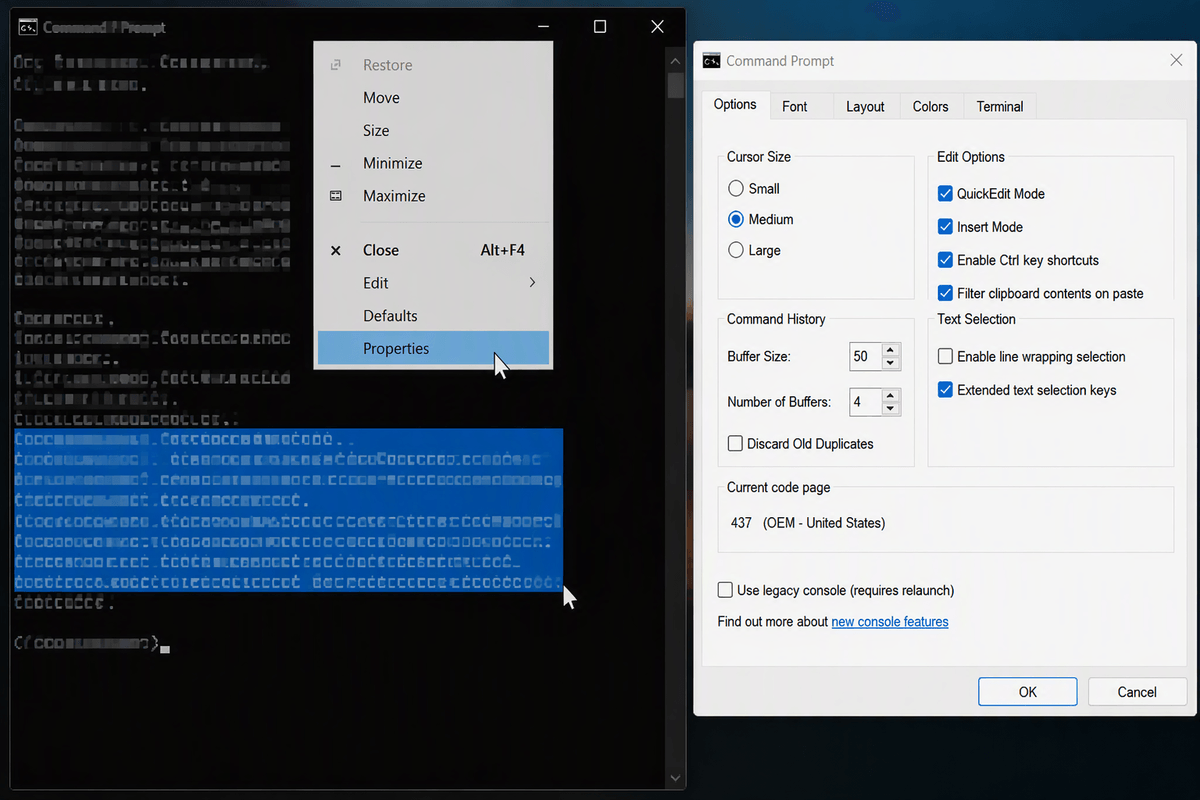
The biggest “why does this feel broken?” moment in CMD is selecting text. If drag-select keeps pausing your running command, turn on QuickEdit Mode: right-click the title bar → Properties → Options. With QuickEdit on, selecting text copies it (and can pause output), and a right-click usually pastes. That’s convenient for everyday work, but it can be a problem during long-running scripts where you accidentally click-drag and freeze the display. If you run lots of continuous output (like ping loops or log tailing), you may prefer QuickEdit off and paste via the menu.
Scrolling is the other quality-of-life fix. In Layout, increase Screen Buffer Size height so you can scroll back through errors and warnings after a command finishes. The trade-off is minor: a larger buffer uses a bit more memory, and huge outputs can still be slow to select and copy.
Customize what you see: title, prompt, and environment variables
Once the window is readable and behaves, it helps to make the content inside it more informative. For the title bar, you can set something meaningful per session with title, like title Work - cmd, which is handy when you have multiple windows open. For the prompt itself, prompt controls what you see before you type. The default already shows the current folder, but you can add quick context, like showing the time or a marker for admin windows. A simple example is prompt $P$G (path + “>”), and you can experiment without “breaking” anything because it resets when you close the window.
Environment variables are the longer-lasting version of this idea: small bits of context and configuration that many tools read. set changes variables for the current CMD session only; setx writes them permanently (user or system), which is useful but riskier. Changing PATH, for example, can make commands “disappear” for other programs, so add carefully and keep a backup of the old value.
Make settings stick: shortcuts, profiles, and startup commands
You’ll notice some changes “mysteriously” vanish because CMD has a few layers. The safest way to make behavior consistent is to edit the shortcut you actually use: right-click it → Properties. The Shortcut tab controls Start in, admin, and any startup command you tack onto Target (for example, launching cmd with /k to run a setup script). The Properties you open from a running window can affect that shortcut, but it’s easy to tweak the wrong one if you launch CMD from different places.
If you mostly work in Windows Terminal, treat it separately: Terminal has profiles, and a “Command Prompt” profile can have its own font, colors, starting directory, and starting command. The practical constraint is maintenance—every extra shortcut or profile is another place you may need to update when you change machines or decide your default folder/color scheme should be different.
A simple checklist to keep CMD consistent across machines
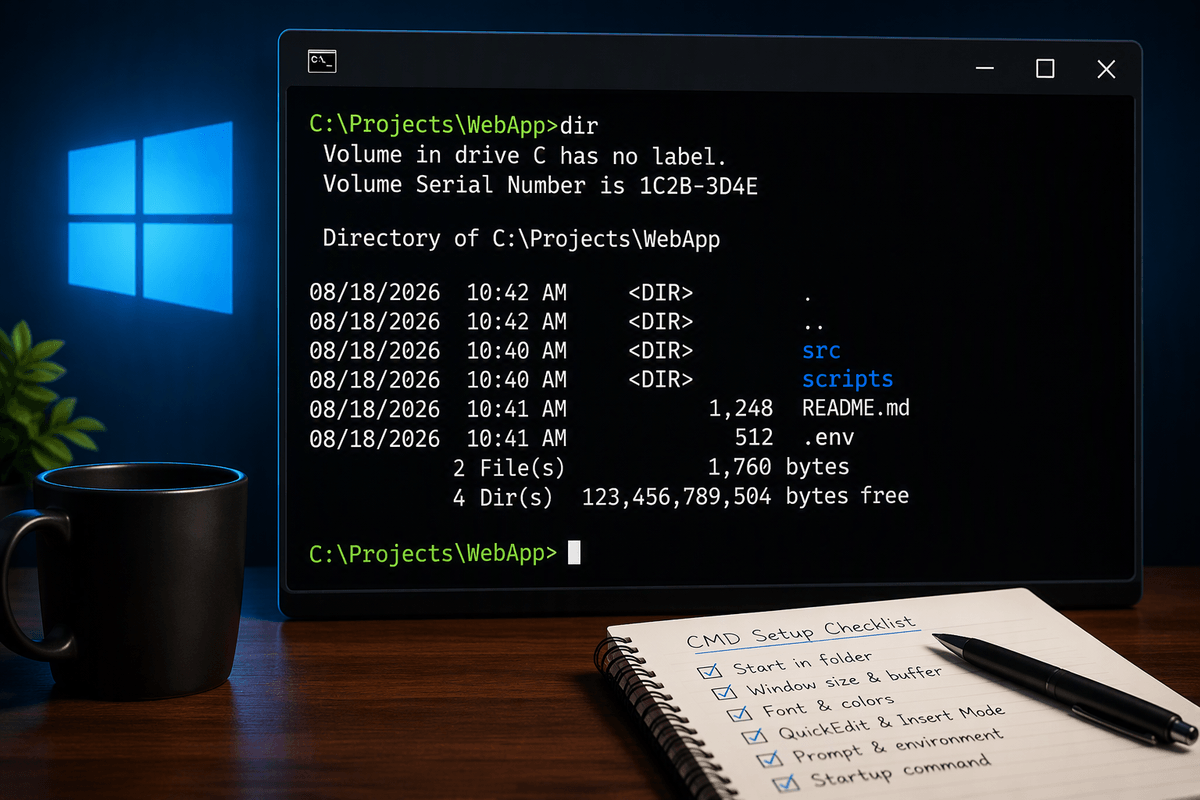
You’ll save yourself a lot of re-tweaking if you treat your CMD setup like a small “config” you can reproduce. Use one primary shortcut (taskbar or Start) and set its Start in, Layout (window width and buffer height), and Run as administrator choice; avoid launching CMD from five different places. Pick one font/size and a high-contrast color pair, then verify QuickEdit and Insert Mode behave the way you expect. Keep a small text file with your preferred prompt command, any safe PATH additions, and any /k startup command, because the real cost is rebuilding this from memory on a new PC.