When an HDCP error appears, what it’s really blocking
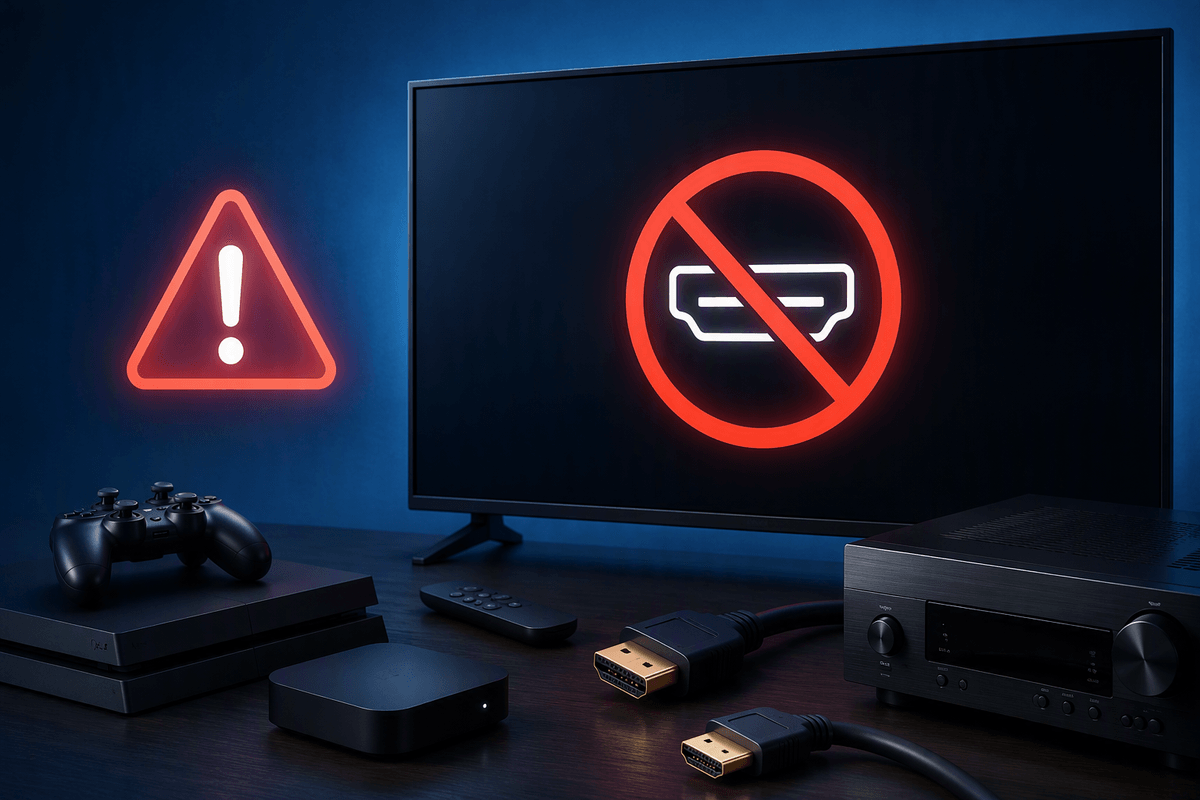
You hit play and the screen goes black, or you get a blunt “HDCP error.” What’s being blocked isn’t your TV turning on or the HDMI signal itself—it’s the protected video stream. HDCP is the copy-protection layer used by most streaming apps, cable boxes, Blu-ray players, and consoles when they output movies and shows over HDMI.
When the devices in your setup can’t prove to each other that every link is “approved,” the source refuses to send the picture (sometimes audio still sneaks through). That means a perfectly good TV can still fail if one item in the middle—an older receiver, an HDMI switch, a capture card, even a finicky adapter—doesn’t support the right HDCP version or can’t keep the connection stable.
HDCP in plain English: the handshake between devices
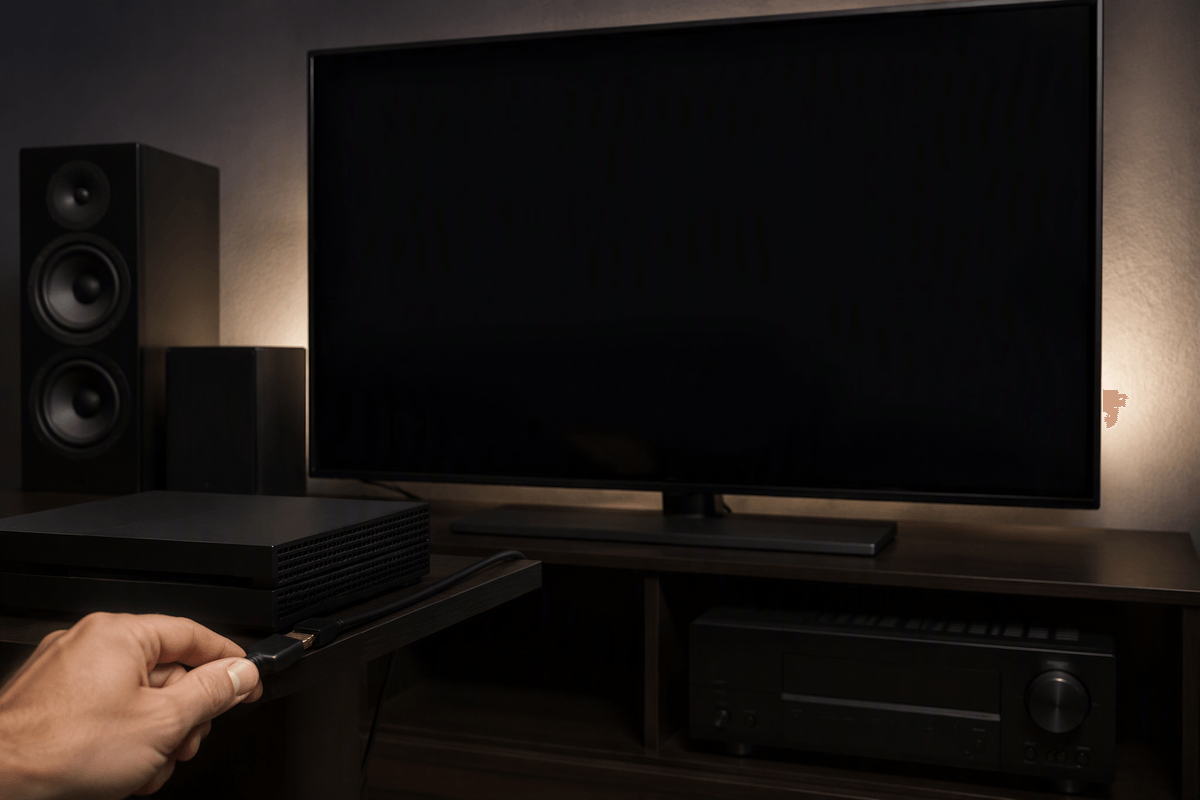
Think of HDCP like a quick ID check that happens over HDMI every time you start playback, switch inputs, wake a device, or change resolution. Your streaming stick, console, or cable box (the “source”) asks the TV, monitor, or receiver (the “display”) to prove it’s HDCP-capable, then confirms that anything in between—AV receiver, soundbar, HDMI switch—can pass that protected signal too.
If every device answers correctly, the video decrypts and plays. If any device can’t answer, answers too slowly, or drops the connection for a moment, the source plays it safe and blanks the picture. That’s why HDCP errors can feel random: a loose cable, a flaky HDMI port, a receiver taking too long to sync after a sleep/wake, or a mismatch like HDCP 2.2 content going through an older HDCP 1.4 link can be enough to break the handshake.
Fast fixes first: resets and simple connection changes
The fastest wins usually come from forcing a clean handshake. Power everything fully off (not just sleep): TV/monitor, streaming device or console, and any receiver/soundbar/switch. Unplug them for 30–60 seconds, then plug the TV in first, let it boot, and bring the source up last. If you use an AV receiver, try a quick bypass test: source straight to the TV with one HDMI cable, then add the receiver back later.
Swap the easy stuff before you dig deeper. Move the HDMI cable to a different TV port (many sets have only one or two ports meant for 4K/HDCP 2.2), and flip the cable ends—some cables behave better in one orientation due to wear. If you’re using adapters (HDMI-to-DVI, USB-C hubs, couplers), remove them temporarily. Also try lowering the source output to 1080p; it’s not a “fix,” but it can get you watching while you isolate the weak link.
Find the weak link: map your entire HDMI chain
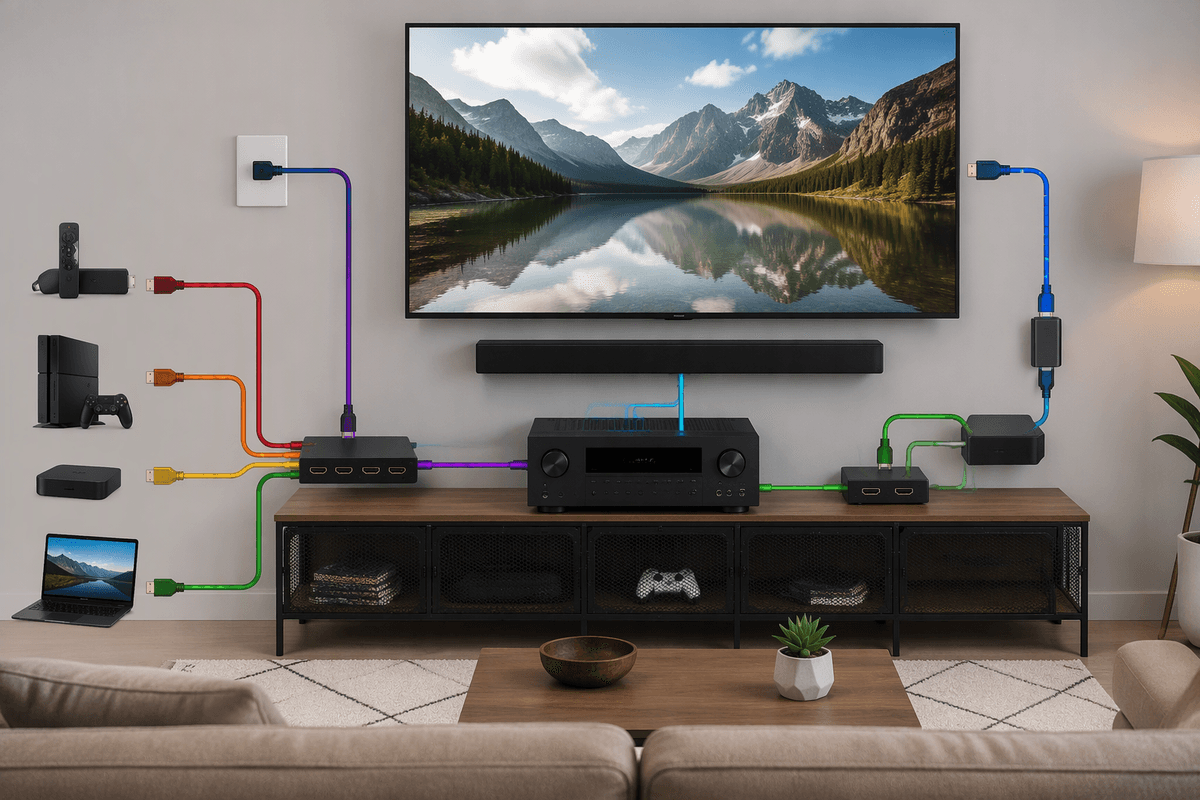
Most HDCP errors stop feeling mysterious once you write down what’s actually in the path. Start at the source (Roku/Fire TV/Apple TV, console, cable box, or PC) and trace every hop until the screen: HDMI cable, wall plate, HDMI switch, AV receiver, soundbar, splitter, capture card, adapter, then the TV/monitor port. If you can’t name every box and cable, you can’t confidently blame any one of them.
Now test by subtraction. The goal is to find the simplest chain that plays protected video: source → one known-good HDMI cable → TV. If that works, add one piece back at a time (receiver next, then switch, then any adapters) and retry playback each time. When the error returns, the last item you added is your prime suspect—or the extra length/connection it introduced. This does take time, and it may mean temporarily losing surround sound or hiding wires to bypass a receiver, but it prevents buying the wrong replacement.
Device-specific fixes: streaming sticks, consoles, PCs, and cable boxes
A common pattern is “it only fails on this one device.” For streaming sticks (Roku/Fire TV/Apple TV), pull power (not just sleep), then set Video/Display to “Auto” and toggle the color mode: try 4K SDR instead of Dolby Vision/HDR, or temporarily force 1080p to rebuild a stable handshake. If the stick is powered from the TV’s USB port, switch to its wall adapter; low USB power can make the HDMI link flaky.
For game consoles, disable “Allow 4K” or HDR/Dolby Vision as a test, then re-enable features one at a time. On PlayStation/Xbox, turn off HDMI-CEC briefly; CEC can trigger extra renegotiations when devices wake. For PCs, use the GPU’s HDMI output directly (avoid docks), update graphics drivers, and confirm the display shows “HDCP supported” in the GPU control panel. Cable boxes are often the strictest: try a different HDMI output setting (1080i/720p), and if it only works when plugged straight into the TV, your receiver/switch is the bottleneck—even if regular channels look fine.
Common culprits: receivers, splitters, capture cards, and “too many adapters”
The most common “mystery” culprit is the box you added for convenience. AV receivers and some soundbars will pass regular video fine but fail protected 4K streams if the HDMI board is older (HDCP 1.4 vs 2.2/2.3), if the wrong input/output is used, or if a setting like “Enhanced/4K” mode isn’t enabled on that HDMI port. A quick tell is: source → TV works, but source → receiver → TV throws HDCP. If your receiver has two HDMI outs, test the other one—one may be labeled for “MAIN/ARC” and behave differently.
Splitters, cheap HDMI switches, wall-plate extenders, and capture cards are even less forgiving because they have to repeat the HDCP handshake. Many either don’t support the right HDCP version or quietly “lie” about capabilities, which streaming apps increasingly reject. Adapters stack up the risk: USB-C hubs, HDMI-to-DVI, couplers, and long active cables add extra chips and extra negotiation points. The practical constraint is that you may need to temporarily give up the clean cable route or the capture setup to confirm playback, then replace that specific device with one that explicitly lists HDCP 2.2/2.3 support.
When to stop troubleshooting: what to replace or upgrade
You stop troubleshooting when the simplest chain (source → one short HDMI cable → TV) still throws HDCP on multiple apps, or when it only works at 1080p and fails the moment you enable 4K/HDR again. At that point, swap the cheapest, highest-failure parts first: a certified Premium High Speed (4K) or Ultra High Speed (8K) HDMI cable, and a different HDMI input that’s labeled for 4K/HDCP (often “Enhanced”).
If direct-to-TV works but anything “in the middle” breaks it, don’t keep chasing settings—replace the middle. Upgrade the receiver/soundbar/switch/splitter to one that explicitly supports HDCP 2.2/2.3 on every port you’ll use, or simplify the setup (eARC for audio back to the receiver). The annoying cost is that “HDCP compatible” is vague marketing; you may need to buy from a retailer with easy returns and test in your exact chain.