What “best projector” means for your room and budget
“Best projector” usually doesn’t mean the sharpest spec sheet. It means the model that looks good in your room, at your screen size, without constant fiddling. A bright living room often rewards higher real-world brightness and flexible placement more than premium contrast. A light-controlled home theater can justify deeper blacks, better HDR tone mapping, and quieter operation. Backyard movie nights prioritize enough brightness for a big image before it gets fully dark, plus quick setup and a speaker plan.
Budget is the other half of “best.” Moving up in price often buys better optics, higher contrast, and easier installation, but it also adds costs like a proper screen, a mount, longer HDMI runs, or an audio solution if the built-in speaker disappoints. The goal is matching the projector to the room first, then spending where you’ll actually see the improvement.
Start with your room: light control and screen size
Picture problems usually start with the room, not the projector. If you can dim lights and block windows, you can prioritize contrast and black level; if you can’t, you’ll need more real-world brightness and you may want a screen designed to reject ambient light (which costs more than a basic matte-white screen). Also be honest about wall and ceiling color: white walls bounce light back onto the screen and wash out blacks, especially in HDR.
Then choose screen size based on seating distance, because bigger isn’t always better. In many living rooms, a 100–120 inch image is the sweet spot; going larger can look amazing at night but starts to look flat during the day unless brightness and screen choice keep up. If you’re projecting onto a wall, expect lower perceived contrast and a less uniform image than a proper screen.
4K vs 1080p: when you’ll actually notice the difference
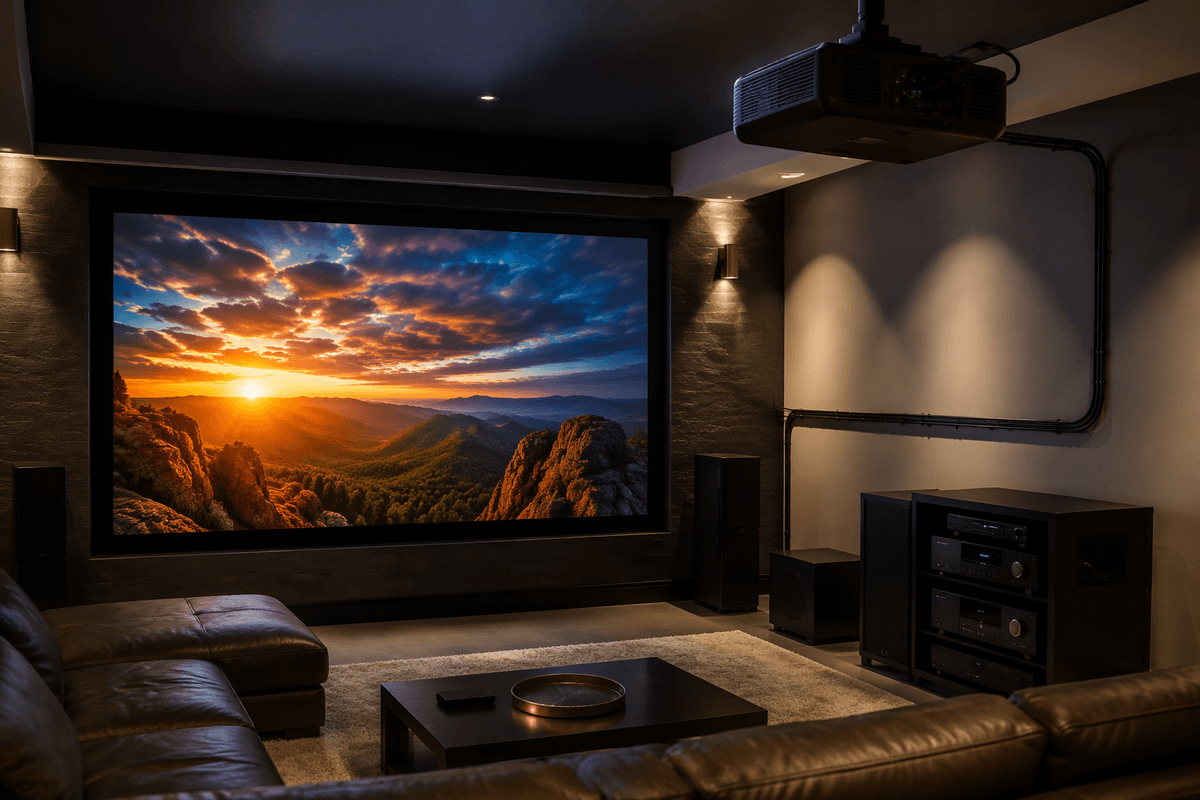
Resolution matters most when you sit close or go big. On a 120-inch screen from 10–12 feet away, 4K usually looks cleaner in fine textures (hair, fabric, subtitles) and avoids the slightly “screen-door” look some 1080p projectors can show. If you’re closer than about 1.2x the screen width, 4K becomes easier to appreciate; farther back, the jump often shrinks.
Real-world catch: many “4K” projectors use pixel-shifting rather than native 4K panels, and the benefit depends on lens quality and focus uniformity. A sharp 1080p model can look more satisfying than a soft, budget 4K one—especially in a bright living room where contrast and brightness dominate what you perceive. Also factor in cost: 4K frequently pushes you into pricier projectors, better screens, and longer HDMI runs to reliably carry 4K HDR signals.
Brightness, contrast, and HDR that doesn’t disappoint
Most “dim” projector complaints are really a brightness-to-screen-size mismatch. A projector that looks punchy at 92 inches can look dull at 135 inches, especially with lights on. Treat brightness as your daytime and backyard insurance, but remember it has trade-offs: higher output modes often get louder, shift colors, and can shorten lamp life (or push a laser unit’s fan noise).
Contrast is what makes movies feel cinematic: shadow detail, depth, and blacks that don’t look gray. In living rooms, reflected light off walls and ceilings can erase the advantage of a high-contrast model, so room control matters as much as specs. HDR is the tricky one—many projectors accept HDR signals but can’t hit the peak highlights you’re used to on a TV. Look for strong tone mapping and solid contrast, because “HDR support” alone can still look flat or too dark.
Placement realities: throw distance, zoom, and lens shift
Most returns happen because the projector simply can’t fit the room. Measure the distance from lens to screen and check the throw ratio range for the image size you want; a model that needs 12 feet for a 120-inch screen won’t magically work from 9. Zoom helps, but it’s usually limited (often around 1.2x–1.6x), and image quality can soften a bit at the extremes.
Lens shift is the real quality-of-life feature. It lets you move the image up/down (and sometimes left/right) without tilting the projector, so you avoid keystone correction, which reduces resolution and can make focus uneven. If you’re shelf-mounting off-center or ceiling-mounting around a fan or beam, prioritize generous lens shift. Ultra-short-throw setups can solve distance issues, but they’re pickier about perfectly flat walls/screens and precise alignment.
Gaming and sports: input lag, motion, and refresh rates
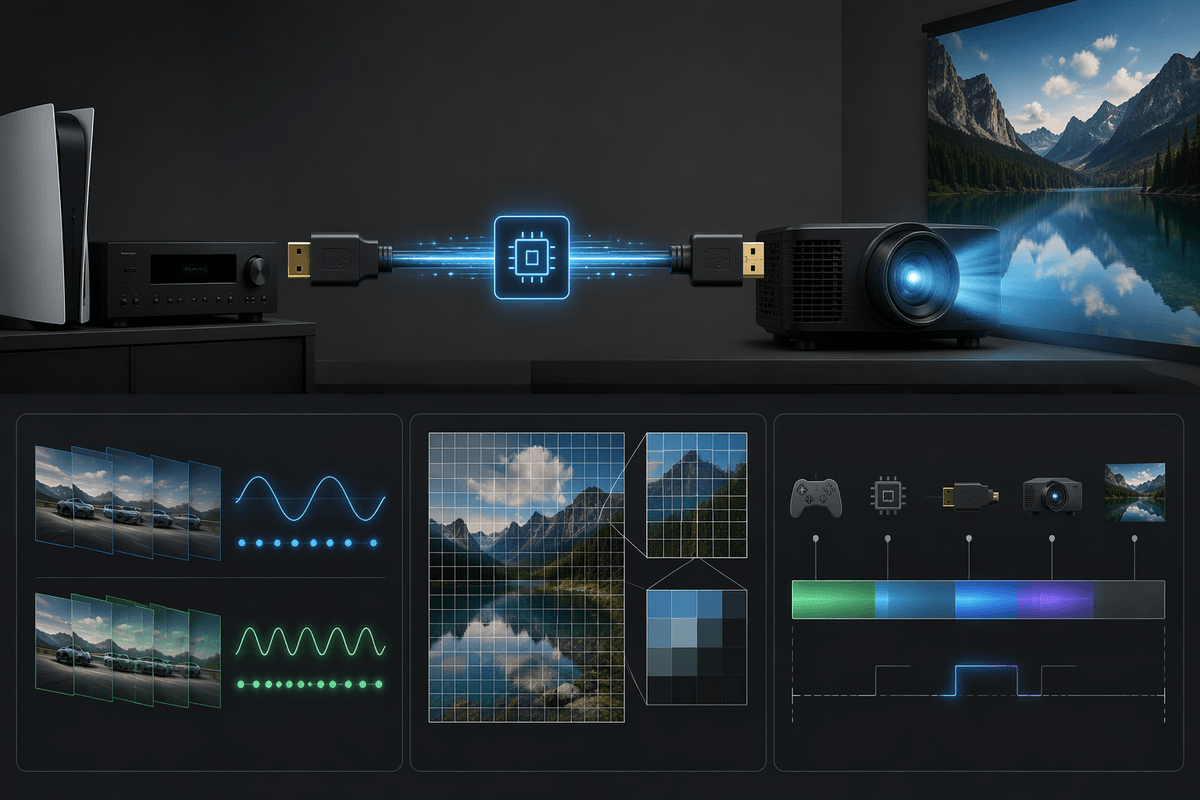
If you watch a lot of sports, you’ll notice motion handling long before you notice a small bump in resolution. Look for clean 60fps playback and solid deinterlacing for cable/OTA, because many broadcasts are still 1080i or 720p. Some projectors add motion smoothing; it can help with fast pans, but it can also create artifacts or make movies look unnaturally “video-like,” so it’s best if you can tune it or turn it off.
For gaming, input lag is the number that matters more than “gaming mode” marketing. Under about 20–30ms feels responsive for most console play, while competitive players tend to want even lower—often at the cost of picture processing and sometimes HDR brightness. Also confirm what refresh rates the projector actually accepts (60Hz vs 120Hz) at your target resolution, because 4K/120 support is still limited and may require very specific HDMI ports and cables.
Shortlist: best 4K and 1080p picks by situation
If you’re shopping for a mixed-use living room (streaming, sports, some lights on), prioritize “looks good anywhere” flexibility over perfect blacks. A compact 4K option like the Hisense C2 Ultra is commonly recommended for that all-around role because it’s built for quick setup and varied content, not just a dark-room theater. If you want a living-room-friendly “laser TV” layout that avoids ceiling mounts and people walking through the beam, short-list a UST like the Hisense PX3-PRO, and budget for an ALR screen—without it, daytime contrast can still look washed out.
For a dedicated, light-controlled home theater where you’ll actually see contrast gains, the Epson LS11000 is a strong 4K-class pick for a permanent install and bigger screens, assuming you’re willing to measure throw and dial in placement instead of relying on keystone. For gaming-first buyers, the BenQ X3100i is a common short-list choice because responsiveness and motion are the point; the trade-off is you may give up some “cinema” black depth versus a theater-leaning setup. If you’re staying 1080p for value, the BenQ HT2060 tends to make more sense for darker rooms (better contrast), while Epson’s Home Cinema 1080 is the safer bet when you need brute brightness.
A quick decision checklist before you hit “buy”
Before you buy, confirm your screen size and seating distance, then pick resolution: go 4K-class for 110–135 inches or closer seating; stick with a strong 1080p model if you’re smaller, farther back, or prioritizing value. Check placement first: throw range at your exact distance, then lens shift (avoid keystone if you can). Match brightness to your worst-case lighting and screen size, and don’t overpay for “HDR” unless contrast and tone mapping reviews look solid. For sports/gaming, verify 60/120Hz support and measured input lag. Finally, budget for the unglamorous stuff: screen, mount, cables, and audio.